
Booking Setting
View and manage reservation categories and booking resource classifications.
Booking Setting
Booking Setting lets developers view, search, and manage classifications of rentable resources, venues, and appointment slots such as conference rooms, hotel suites, rental equipment, or consultation services.
Resource classifications managed here establish the reservation categories used across the Booking calendar and appointment scheduler.
When you use this
- Reviewing all configured booking resource categories across the organization.
- Searching for specific resource types by title or technical identifier.
- Exporting booking resource classifications to Excel or CSV for auditing.
- Opening the editor to configure new or existing booking resource types.
Before you start
- Sign in to the Developer Console with your developer credentials and two-factor code.
- Ensure prerequisite contact types (such as Guests or Clients) exist in Contact Setting.
- Prepare the facility details and notification channels needed for your resource categories.
Open the booking settings screen
In the Developer Console left navigation explorer, under the General section, click Booking Setting.
Search or filter booking resource types
Use the live Search bar above the datatable to find resource types by title or identifier. Adjust page size using the Show dropdown.
Manage columns or export
Click Columns to toggle visible table columns, or click Export to download the records as Excel or CSV.
Open the creation window
Click Booking Setting Add in the top right corner above the datatable to open Booking Setting Edit.
Every field on this screen
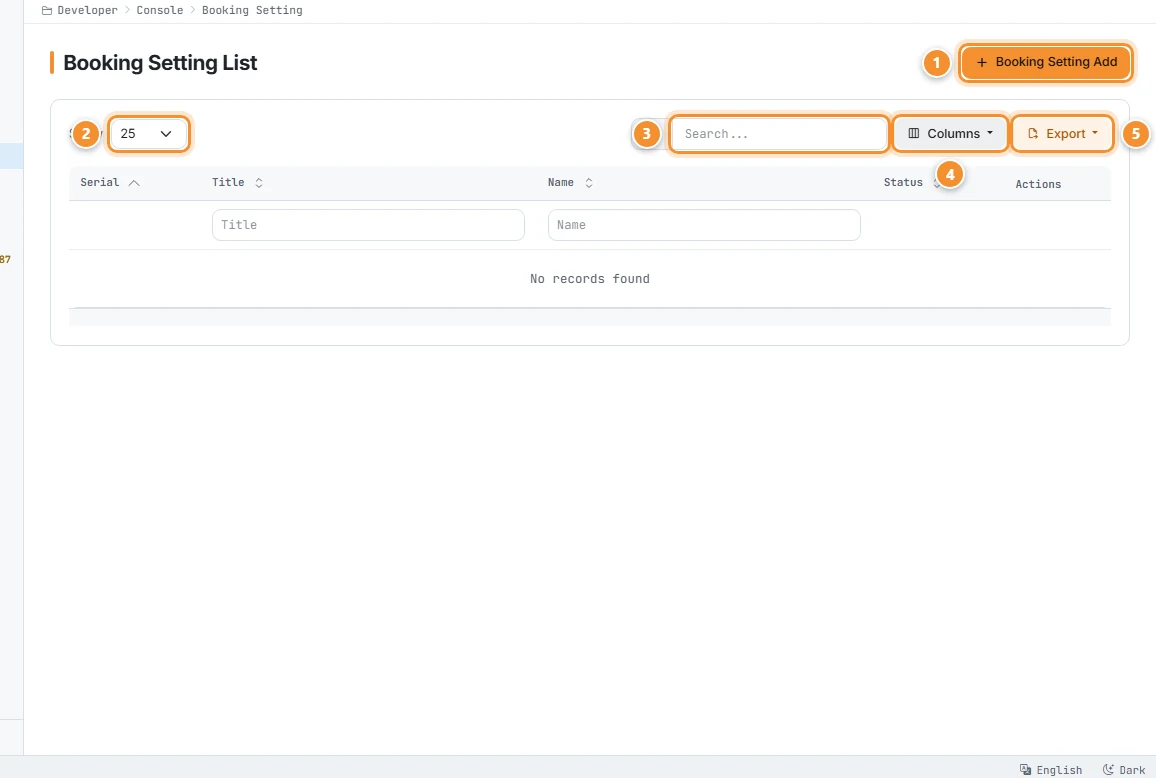 The booking resource type list screen
- Booking Setting Add — opens the modal window to create a new booking resource classification.
- Show — controls how many booking resource type records to display per table page (10, 25, 50, 100, or 250).
- Search — filter the list of booking resource types by name or title in real time.
- Columns — choose which columns to display or hide in the booking types datatable.
- Export — download the list of booking resource types as Excel or CSV.
In the table, each row displays Serial, Title, Name, Status, and assigned contact parameters with action buttons to edit or delete records.
Complete example: Inspecting booking categories
Suppose an administrator needs to verify whether conference rooms are configured for online reservations:
- Navigate to Booking Setting in the Developer Console navigation.
- In the Search input, type
Conference. - The datatable filters instantly to display all matching booking categories along with their technical identifiers and bound contact types.
- Click Export to generate an Excel spreadsheet of all active resource configurations for operational auditing.
How to extend
- Add custom metadata fields to reservations by configuring parameters in Booking Setting Edit.
- Integrate custom resource availability schedules within the core Booking calendar.
- Bind booking types to specialized contact categories configured in Contact Setting.
Rules and pitfalls
- Deleting an active booking resource type prevents staff from selecting it for new reservations.
- Always verify that the bound Contact Type remains active in Contact Setting.
- Technical names must remain unique across all resource classifications.
Common questions
Where do staff view bookings created under these resource types? Staff view scheduled appointments and manage availability directly in the Booking module calendar.
Can I restore a deleted booking resource classification? Contact your system administrator or recreate the classification with the required settings.