
Payment Setting Edit
Create or modify payment voucher types, settlement pathways, and prefix numbering.
Payment Setting Edit
The Payment Setting Edit window enables developers to configure outgoing payment voucher types, money disbursements, supplier settlements, and expense payment channels.
Payment types govern how financial disbursements, supplier account settlements, and expense payments are formatted, numbered, and recorded across the system.
When you use this
- Creating specialized disbursement vouchers such as
Supplier Bill Settlement,Operational Expense Payment, orPayroll Disbursement. - Configuring customer refund vouchers for processed sales returns.
- Assigning default payment receipt and disbursement slip print layouts.
- Defining automated payment voucher prefix numbering (e.g.
PAY-,DISB-, orEXP-).
Before you start
- Open Payment Setting and click Payment Type Add or click an existing record's edit button.
- Ensure prerequisite payment receipt layouts are configured in Invoice Templates.
- Verify payment methods (Cash, Bank, Mobile Money) are set up in accounting settings.
Configure basic identity and status
Enter the Title and unique technical Name. Select the operational Status (Active or Inactive), and assign a default Invoice Template for printable payment receipts.
Configure numbering prefix and suffix
In the numbering section, enter the reference Prefix (e.g. PAY-) and optional Suffix strings for auto-generated payment voucher numbers.
Save the payment type
Click Save & close at the bottom of the window to apply your changes and refresh the list.
Every field on this screen
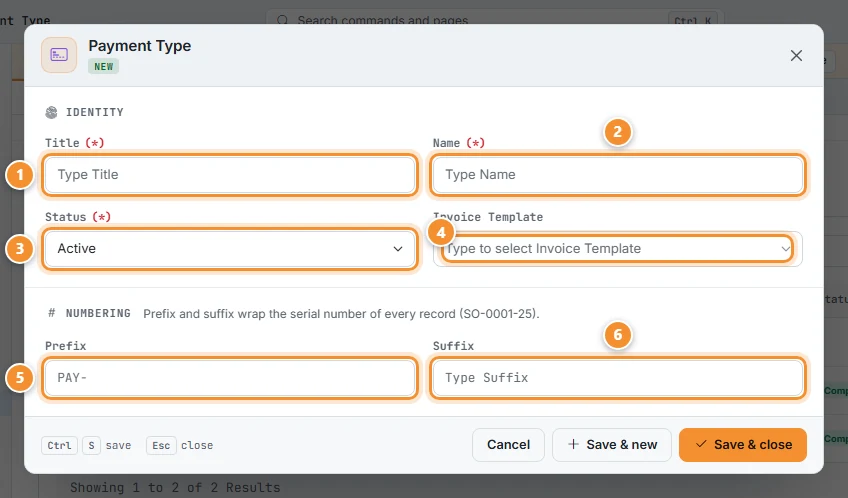 Adding or changing a payment type
- Title — display name shown to accounts staff in payment voucher menus (e.g.
Supplier Bill Payment). - Name — unique technical identifier used internally (e.g.
supplier_bill_payment). - Status — sets whether this payment type is active and selectable by staff, or disabled.
- Invoice Template — preset printable payment receipt or disbursement voucher template.
- Prefix — characters placed at the beginning of generated payment voucher numbers (e.g.
PAY-). - Suffix — characters placed at the end of generated payment voucher numbers.
Complete example: Setting up a "Supplier Bill Payment" voucher
Suppose you need to set up a dedicated voucher type for vendor payments:
- In Payment Setting, click Payment Type Add.
- In the modal:
- Set Title to
Supplier Bill Payment. - Set Name to
supplier_payment. - Set Status to
Active. - Set Prefix to
SPAY-.
- Set Title to
- Click Save & close.
When accounts staff issue a payment to a vendor, the system generates vouchers with numbers like SPAY-00101 and formats the receipt according to the selected invoice template.
How to extend
- Design specialized disbursement voucher layouts using the print template editor.
- Connect disbursement channels to automated bank reconciliation workflows.
- Pair with Account Receipt Setting for full incoming and outgoing transaction categorization.
Rules and pitfalls
- The technical Name must be unique and contain only lowercase alphanumeric characters and underscores.
- Numbering prefixes should be unique across all payment types to avoid duplicate voucher references.
- Inactive payment types cannot be used when generating new disbursement vouchers.
Common questions
What is the difference between Payment Setting and Account Receipt Setting? Payment Setting configures outgoing disbursements and money paid out. Account Receipt Setting configures incoming money collections from customers.
Can I change the prefix after vouchers have been issued? Yes, but the new prefix only applies to future vouchers; existing payment records remain unchanged.