
Section Designer
Design reusable theme section blueprints visually, configure settings, declare block types, and create presets.
Section Designer
The Section Designer provides a visual blueprint editor for theme section schemas (sections/<name>.json) in Theme Studio. It allows developers to configure section titles, assign categories, restrict page and group placements, configure customizable settings, define repeat block types, assemble starter presets, and run automated setting usage analysis without editing raw JSON markup by hand.
Each section template (
sections/<name>.html) pairs with a companion schema file (sections/<name>.json). The Section Designer edits this schema in your working draft.
When you use this
- Building a new reusable storefront section with customizable merchant settings.
- Adding child block types (such as slides, testimonial cards, or banner columns) to a section.
- Generating starter presets so merchants can add pre-configured section variations in one click.
- Checking that all variables used in template HTML are declared in the section schema.
Before you start
- Open Website Manage → Theme Studio from the Developer Console.
- Open any section JSON file (such as
sections/hero.json) and ensure Designer mode is active in the breadcrumbs bar.
How to use the section designer
- Open the target section JSON file and verify that the breadcrumb view toggle shows Designer.
- In the Section attributes block, set the Section title, Section category, Instance limit, Enabled pages, and Enabled groups.
- In the settings table, review existing Section settings or click Add setting to add a new input control.
- If the section supports repeatable items (such as feature columns), click Add block type and configure the block's title, type, and max instance count.
- In the Section presets area, click Add preset to configure starter defaults and pre-populated block layouts for merchants.
- Check the Undeclared settings analyzer alert box at the top to discover any template variables that need declaring.
- Click Save in the breadcrumbs bar (
Ctrl+S) to commit the updated section schema to your working draft.
Every field and control in Section Designer
The Section Designer provides top-level blueprint metadata, setting grids, block definitions, and preset builders:
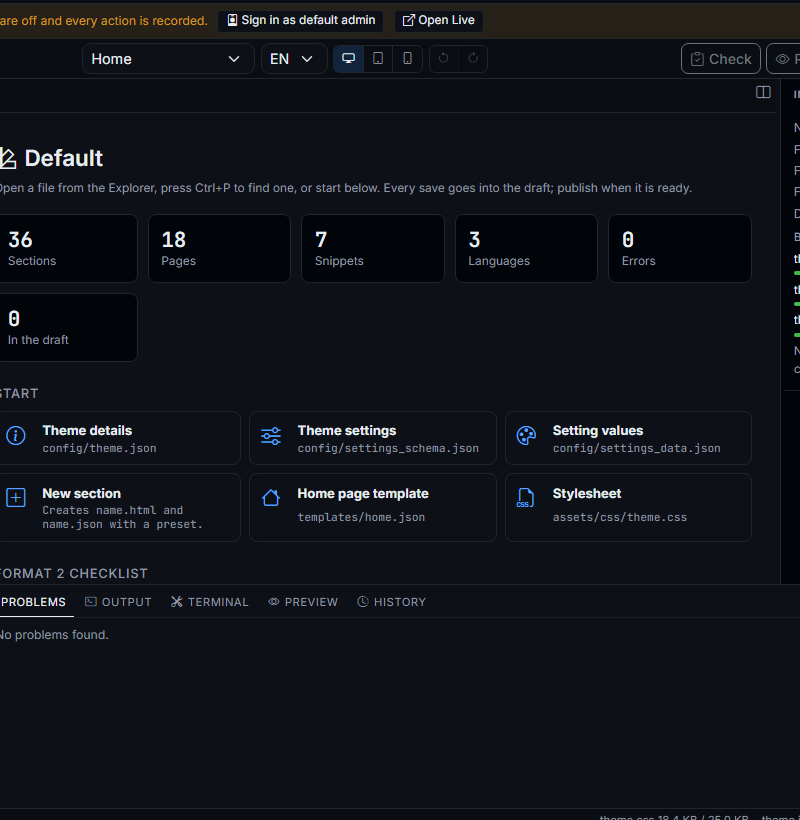 Theme Studio section schema designer
- Section attributes — Top-level metadata specifying how the section behaves in the storefront customizer:
- Section title — Human-readable name displayed when adding sections (such as "Image with text").
- Section category — Storefront drawer category (e.g.
hero,products,content,social_proof,media,footer). - Instance limit — Optional maximum number of times this section can be added to a single page.
- Enabled pages — Comma-separated template names where this section is available (
*for all pages). - Enabled groups — Target section group containers (such as
headerorfooter).
- Section settings table — Tabular definition list of all top-level customizable fields available on the section.
- Add setting — Action button that creates a new setting definition row with type selection and default values.
- Add block type — Creates a new child block definition with its own nested settings table and maximum child limits.
- Add preset — Generates a merchant-ready preset bundle defining initial settings and starter blocks.
Managing repeatable blocks and presets
Sections often contain repeatable elements like slides, image galleries, or multi-column grids:
- Block type definition — Configures the block identifier, title, and optional maximum limit.
- Block settings — Each block type maintains its own nested settings table accessed by clicking the block header.
- Section presets — Defines preset configurations that show up in the merchant's "Add section" drawer with custom thumbnails, initial block layouts, and pre-set text values.
- Undeclared settings analyzer — Inspects the paired
.htmltemplate and displays warnings if asettings.<id>variable is used in HTML but not declared in the schema, with one-click+ declarebuttons.
Complete example: Adding a customer testimonial slider section
Suppose you built sections/testimonials.html and want to define its schema with repeatable quote blocks:
- Open
sections/testimonials.jsonin Theme Studio and activate Designer view. - In Section attributes, set Section title to
Customer Testimonialsand Section category tosocial_proof. - Under Section settings, click Add setting to add a section-wide
headingtext setting. - Click Add block type.
- In the Block type definition, set Type to
quote, Title toTestimonial, and Max to6. - Inside the
quoteblock settings, add atextareasetting forquote_textand atextsetting forauthor_name. - Scroll down to Section presets and click Add preset.
- Name the preset
Default Testimonialsand configure 3 starterquoteblocks. - Press
Ctrl+Sto save the schema.
Result: The testimonial section is registered with full block customization and starter presets ready for merchants.
How to extend
- Toggle to Source mode in the breadcrumbs bar to review the compiled JSON structure.
- Use preset thumbnails (
preset.thumbnail) to give merchants visual previews when browsing sections in the store customizer.
Rules and pitfalls
- Block type identifiers within a single section must be unique.
- Setting IDs inside blocks are scoped under
block.settings.<id>in templates, whereas section settings usesettings.<id>. - Always declare presets for reusable sections; sections without presets cannot be added to dynamic pages by merchants.
Common questions
What does the Undeclared settings alert mean?
The analyzer scans your companion .html template. If it finds settings.xyz in HTML that has no matching ID in the schema, it warns you and lets you add the setting with one click.
Can I limit a section so it can only be added to product pages?
Yes. In Enabled pages, enter product to restrict section availability exclusively to product template layouts.