
Assistant
Use the AI theme assistant to generate code, adapt section responsiveness, add schema settings, and localize strings.
Assistant
The Assistant view integrates an AI-powered coding and design assistant directly inside Theme Studio. It provides targeted suggestions based on the currently open file, automates repetitive markup tasks, generates new section templates, extracts hardcoded text into locale files, and writes code directly into your working draft for your review.
The AI assistant never publishes changes automatically. All generated edits land in your isolated working draft so you can review diffs and test in the preview before publishing.
When you use this
- Refactoring an existing theme section to ensure clean responsiveness on mobile devices.
- Generating new section schema settings and wiring them into template HTML.
- Extracting hardcoded template strings into locale JSON translation files.
- Creating a new section layout variation based on the currently open section blueprint.
Before you start
- Open Website Manage → Theme Studio from the Developer Console.
- Open the template, section, or stylesheet file you want the assistant to inspect or edit.
How to use the assistant view
- In the left activity bar, click the Assistant icon (stars symbol).
- Open the specific file you want to change in the code editor.
- Choose one of the quick prompt suggestion buttons (such as Make this section work well on phones).
- Alternatively, type your custom instruction into the Ask text area.
- Click Ask the assistant to submit your request.
- The assistant inspects the active file and writes the proposed code edits directly into your working draft.
- Open the Changes view in the sidebar to review the side-by-side diff before publishing.
Every field and control in Assistant
The Assistant sidebar provides quick prompt starters, a prompt entry area, and submission controls:
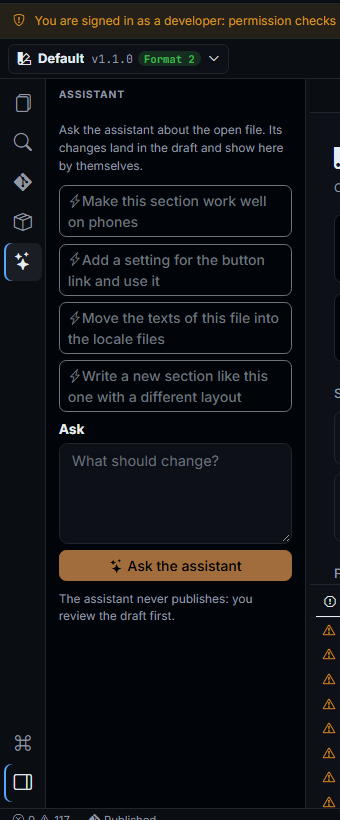 Theme Studio AI assistant sidebar
- Make this section work well on phones — Quick prompt that instructs the assistant to inspect the open template or section and apply mobile-responsive CSS and markup adjustments.
- Add a setting for the button link and use it — Quick prompt that adds a new URL setting to the section's JSON schema and wires the setting variable into the template button.
- Move the texts of this file into the locale files — Quick prompt that extracts hardcoded copy into
locale/en.jsonand replaces the text witht('key', 'Default')calls. - Write a new section like this one with a different layout — Quick prompt that generates a new section template copying schema fields but applying an alternative visual layout.
- Ask — Main multi-line prompt textarea where you enter specific custom design or coding instructions.
- Ask the assistant — Primary action button that submits your request to the assistant and initiates code generation.
How assistant changes land in your draft
Theme Studio maintains strict safety safeguards during all AI operations:
- Isolated working draft — The assistant writes directly into your working draft files. Live storefront files remain untouched.
- Visual change tracking — Modified files immediately receive an orange M badge in the Explorer and appear in the Changes view.
- Reviewable diffs — You can click Show diff on any file modified by the assistant to verify every changed line.
Complete example: Extracting template strings to translation files
Suppose you have a hero banner section with hardcoded English titles and want to localize it:
- Open
sections/hero.htmlin the code editor. - Click the Assistant icon in the activity bar.
- Click the suggestion button Move the texts of this file into the locale files.
- The prompt appears in the Ask text area. Click Ask the assistant.
- The assistant extracts the strings into
locale/en.jsonand updatessections/hero.htmlwith translation filters. - Click the Changes icon in the activity bar to inspect the modified files.
- Click Show diff on
sections/hero.htmlto confirm that the text was replaced with{{ t('hero.title', 'Welcome') }}.
Result: The section is cleanly localized in your working draft without manual JSON editing.
How to extend
- Provide precise instructions in the Ask textarea referencing specific Twig filters or section blocks.
- Ask the assistant to generate complete sample JSON schemas for complex multi-block sections.
Rules and pitfalls
- Always keep the target file open in the active editor tab when submitting a prompt so the assistant knows what context to use.
- Review diffs carefully in the Changes view before publishing assistant-generated edits.
- The assistant is disabled when working on themes without an active workspace.
Common questions
Can the assistant accidentally overwrite published storefront templates? No. The assistant operates exclusively inside your working draft and cannot publish directly to the storefront.
What happens if I dislike the assistant's suggested code? You can click Revert next to the modified file in the Changes view, or use the Undo draft step button in the title bar.