
Search
Find and replace text, CSS classes, schema settings, and Twig tags across all theme template files.
Search
The Search view is the global text search and batch replacement tool in Theme Studio. It allows developers to locate text strings, HTML tags, CSS classes, JSON settings, and Twig expressions across all files in the active theme with case matching and regular expression support.
Global search and replace operations modify files in your isolated working draft. Changes do not affect the live storefront until you publish.
When you use this
- Locating every occurrence of a specific CSS class, HTML element, or custom snippet across all theme templates.
- Renaming a setting key across section schemas and template markup simultaneously.
- Finding specific translation keys or hard-coded strings to ensure complete localization.
- Performing batch string replacements across layouts, templates, and sections in one operation.
Before you start
- Open Website Manage → Theme Studio from the Developer Console.
- Ensure you have opened the target storefront theme you want to search.
How to use the search view
- In the left activity bar, click the Search icon (or press
Ctrl+Shift+F) to reveal the search sidebar. - In the Search in the theme input, enter the search phrase or regular expression.
- Optionally enter new text into the Replace with input field.
- Toggle search flags (Match case or Regex) as needed.
- Press
Enterto display matching lines grouped by file in the Search results list. - Click any result line to open the exact file and jump directly to that line in the editor.
- Click Replace all or use individual replacement buttons on specific occurrences to apply substitutions.
Every field and control in Search
The Search sidebar provides input controls, search modifiers, and result listings:
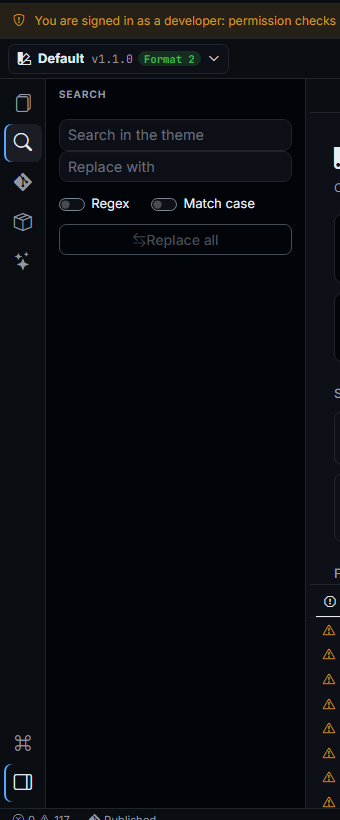 Search and replace sidebar
- Search in the theme — Main text input field for entering query words, variable names, or patterns across the entire theme.
- Replace with — Substitution text input field specifying what matching text will be replaced with.
- Search options — Two modifier checkboxes that control search behavior:
- Regex — Enables regular expression pattern matching (such as
\{\{\s*settings\.[a-z_]+\s*\}\}). - Match case — Distinguishes between uppercase and lowercase characters during search.
- Regex — Enables regular expression pattern matching (such as
- Replace all — Batch action button that executes the replacement across all matching files in your working draft.
- Search results list — Grouped tree of files containing matches, showing file names, match counts, and expandable line previews.
Managing individual search results
When search results appear, each file group provides focused review and replacement actions:
- File header — Displays the relative theme file path (for example,
sections/header.html) and total matching count. - Result item — Individual result row showing line number and a snippet of surrounding code.
- Replace single instance — Hovering over an individual result row reveals a replace icon to update that single occurrence without affecting others.
Complete example: Renaming a promotional CSS class across all templates
Suppose you updated your theme stylesheet from .promo-banner to .banner-highlight and need to update all template references:
- Click the Search icon in the activity bar.
- In Search in the theme, enter
promo-banner. - In Replace with, enter
banner-highlight. - Check Match case to ensure exact character matching.
- Press
Enterto review the matching lines acrosslayouts/theme.htmlandsections/hero.html. - Click Replace all to apply the update across all matched template files.
- Open the Changes view in the sidebar to review the modified files.
Result:
All occurrences of promo-banner are cleanly updated to banner-highlight in your working draft.
How to extend
- Use regular expressions with capture groups to reformat repetitive Twig tags across older templates.
- Pair search queries with the Find usages option from the Explorer context menu to trace specific component partials.
- Test replacements on individual files first before running Replace all.
Rules and pitfalls
- Always review matching occurrences in the Search results list before clicking Replace all to prevent unintentional replacements in JSON schema files.
- Remember that batch replacement immediately marks all affected files as modified (blue M in Explorer) in your draft.
- You can undo individual file changes in the Changes view if you make a mistake during replacement.
Common questions
Does search include image and font files in assets?
No. Search scans only text-based files including .html, .json, .css, .js, and .svg.
Can I undo a Replace all operation? Yes. You can use the Undo draft step button in the title bar or revert individual files in the Changes view before publishing.