
Inspector
Inspect contextual metadata, paired schemas, live isolated previews, and usage dependencies in the right panel.
Inspector
The Inspector panel provides a context-aware helper sidebar on the right side of Theme Studio. It updates dynamically based on the active file in the editor: when editing a section, it shows its paired schema settings, live isolated preview, and where it is used; when viewing snippets or assets, it lists reverse dependencies; and when inspecting page templates, it reveals the placed section stack.
Toggle the Inspector panel at any time by clicking the Inspector icon on the right side of the Title bar or pressing
Ctrl+Alt+I.
When you use this
- Quick-inserting setting variables (
{{ settings.<id> }}) directly into section HTML at your cursor position. - Viewing an isolated live preview of a single section with dummy data as you write code.
- Checking which page templates and section groups depend on the current section or snippet before refactoring.
- Opening a companion JSON schema file in a split editor beside your template code in one click.
Before you start
- Open Website Manage → Theme Studio from the Developer Console.
- Open any section file (such as
sections/header.html) and ensure the Inspector panel is open on the right.
How to use the inspector
- Open a template or section file in the Editor.
- If the Inspector is closed, click the Inspector button in the title bar or press the toggle shortcut.
- When editing a section, expand the Schema accordion to view all declared settings and child blocks.
- Click Insert at the cursor next to any setting ID to paste
{{ settings.<id> }}into your code. - Click Open beside to open the paired
.jsonschema in a split editor pane to edit code and schema simultaneously. - Click Designer to jump directly to the visual Section Designer.
- Review the Live preview card to observe instant visual feedback as you modify section markup.
- Expand the Used in section to verify which storefront templates rely on this file.
- Click Close (
×) to collapse the Inspector and regain full editor width.
Every field and control in Inspector
The Inspector adapts its sections according to the active file type in the editor:
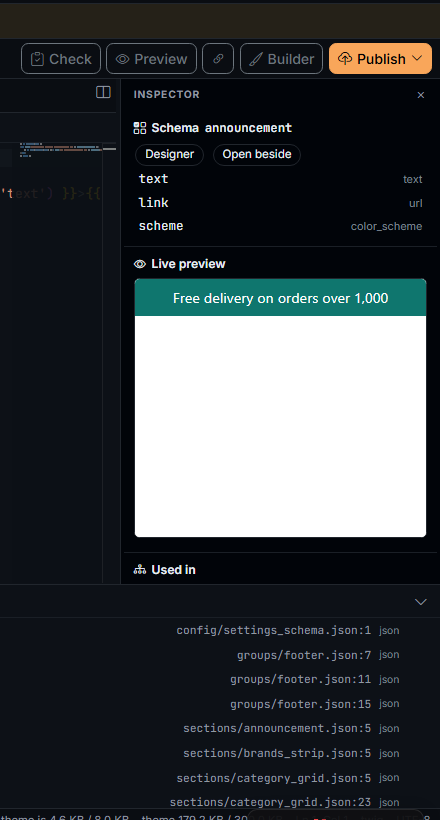 Theme Studio contextual inspector sidebar
- Inspector header and close — Header bar identifying the panel:
- Close — Action button (
×) that toggles off the Inspector panel.
- Close — Action button (
- Section schema and settings helper — Metadata tools for the active section:
- Designer — Action button that opens the section schema in visual designer mode.
- Open beside — Action button that splits the editor and opens
sections/<name>.jsonside by side. - Insert at the cursor — Action button on each setting row that pastes
{{ settings.<id> }}at the active cursor position.
- Live isolated preview frame — Preview pane rendering the active section:
- Live preview frame — Renders the isolated HTML output using sample settings data without reloading the full storefront.
- Error list — Displays syntax or Twig compilation warnings if the markup cannot render cleanly.
- Usage dependency tree — Reverse dependency explorer:
- Used in list — Displays all templates (
templates/*.json) and section groups (groups/*.json) containing this component. Clicking any entry opens that template immediately.
- Used in list — Displays all templates (
Complete example: Inserting a setting variable and verifying live preview
Suppose you are authoring sections/announcement-bar.html and want to insert a link setting into the template:
- Open
sections/announcement-bar.htmlin the Monaco editor. - Ensure the Inspector panel is open on the right.
- In the Inspector, expand the Schema accordion.
- Locate the
link_urlsetting in the list. - In your HTML code, place the editor cursor inside
<a href="...">. - Click Insert at the cursor next to
link_urlin the Inspector. - The editor immediately populates
{{ settings.link_url }}at your cursor position. - Observe the Live preview frame below: it refreshes automatically with dummy test values.
- Press
Ctrl+Sto save your changes.
Result: The setting variable is inserted accurately without manual typing, and the rendered output is verified in real time.
How to extend
- Add documentation strings to section schemas so helpful tooltips appear inside the Inspector's settings list.
- Keep the Inspector open on widescreen displays alongside split editor panes for rapid full-stack theme development.
Rules and pitfalls
- The live isolated preview renders only the current section; styles that depend on ancestor page wrappers may look unstyled if not included in the section's CSS.
- Undeclared variables used in the template trigger warning banners inside the Inspector with quick-declare actions.
Common questions
What does the Inspector show when no file is open? When no editor tab is active, the Inspector displays overall theme statistics, including the theme title, folder location, specification format, total file count, draft status, and asset size budgets.
What does the Inspector show for image assets?
When you open an asset in assets/, the Inspector displays an image preview thumbnail, exact dimensions, file size, and every template that references the asset filename.
Related pages
- Editor — Monaco editor, tabs, split view, and source modes.
- Section Designer — Configure section schemas, block types, and presets.
- Template Designer — Arrange page section hierarchies and parent layouts.
- Title bar — Workspace controls, theme switcher, and device modes.