
Explorer
Browse theme files and directories, filter template folders, and manage files with context actions.
Explorer
The Explorer view is the primary file navigation sidebar in Theme Studio. It provides a structured directory tree of the active theme, fast file filtering, uploads of pictures and fonts, and full file-management context menus for creating, editing, renaming, duplicating, and removing template files.
All files displayed in the Explorer reflect your working draft. Editing or adding files modifies the draft workspace without affecting the live website until you publish.
When you use this
- Browsing theme folders to open layouts, sections, templates, snippets, stylesheets, and localization dictionaries in the editor.
- Creating new section templates (
.html) paired with JSON schema settings (.json). - Uploading pictures, icons and fonts into
assets/. - Downloading individual folders or entire theme directory trees as zipped archives for local backup.
Before you start
- Open Website Manage → Theme Studio from the Developer Console.
- Select your target theme from the theme switcher in the title bar.
How to navigate the Explorer
- In the left activity bar, click the Explorer icon (or press
Ctrl+Shift+E) to reveal the file sidebar. - Type in the Filter files input field to quickly locate a specific file across all theme folders.
- Click any folder row in the Theme folder tree to expand or collapse its contents.
- Click any file to open it in a tab inside the editor area.
- Right-click any file or folder to open the Context menu for quick file management operations.
Every field and control in the Explorer
The Explorer sidebar contains header toolbar actions, a fast search filter, and the interactive folder tree:
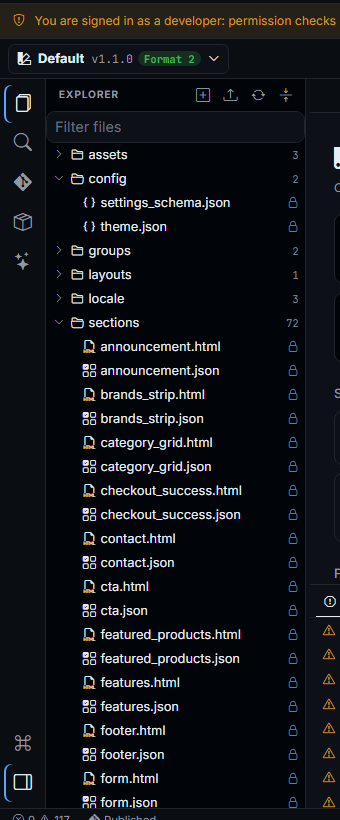 Explorer sidebar and folder tree
- Explorer header and toolbar — Contains the section title and action buttons: New section (creates a section blueprint), Upload pictures or fonts (opens the file picker for
assets/), Refresh (reloads theme tree from draft), and Collapse or expand all (toggles open folders). - Filter files — Real-time filter input that searches file paths and folder names, narrowing down the tree view as you type.
- Theme folder tree — Structured file tree displaying directories and files with draft status chips:
config— Holdstheme.json(the theme's name, version and list of pages) andsettings_schema.json(the theme settings, in groups).layouts— The page framebase.html: the<head>, the header and footer groups and the page content.sections— Modular, reusable storefront components (pairedname.htmlmarkup andname.jsonschemas).templates— One JSON file per page (such ashome.json,products.json,product.json,cart.jsonandpage.json) that lists the page's sections and their order.snippets— Small reusable template partials included across multiple sections.groups— Header and footer section groups rendered globally across storefront pages.assets— Static media files including CSS stylesheets, JavaScript scripts, SVG icons, and promotional graphics.locale— Translation dictionaries stored as JSON files (such asen.json,bn.json, andfi.json).
Folder and file context menu
Right-clicking any folder or file row in the tree opens the dedicated context menu:
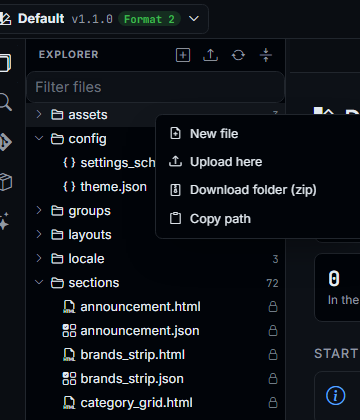 Explorer right-click context menu
- New file and folder actions — Quick actions to create a New file or New section directly inside the selected folder.
- Upload and download folder — Options to Upload pictures or fonts here (only on
assets/and its folders; other file types are refused with a message that points to a repository) or Download folder (zip) to export the selected directory. - File management actions — Standard file utilities:
- Open beside — Opens the selected file in a split editor tab beside the current active document.
- Close others — Closes all other editor tabs except the selected file.
- Rename — Opens a prompt to rename the file or folder.
- Duplicate — Creates an exact copy of the selected file with a
-copysuffix. - Find usages — Searches for all occurrences and inclusions of this file across the entire theme.
- Copy path — Copies the relative theme path (for example,
sections/hero.html) to your clipboard. - Take out of the draft — Discards local changes on this file and reverts it back to the published state.
- Reset to shipped — Resets the file back to the original version provided with the theme you started from.
- Delete — Removes the file or folder from your working draft.
Complete example: Creating a custom announcement banner section
Suppose you want to add a top announcement banner section to your storefront theme:
- In the Explorer toolbar, click New section (or right-click the
sectionsfolder and choose New section). - In the creation prompt, type
announcement-bannerand confirm. - Theme Studio automatically creates two paired files in the
sectionsfolder:sections/announcement-banner.html(for HTML markup and Twig tags)sections/announcement-banner.json(for visual settings schema)
- Click
announcement-banner.htmlto add the markup:<aside class="announcement-bar"> <p>{{ settings.announcement_text }}</p> </aside> - Click
announcement-banner.jsonand switch to the Section Designer to add theannouncement_textsetting. - Press
Ctrl+Sto save both files to your working draft.
Result: The new announcement banner section is saved to the theme and becomes immediately available in page templates and section pickers.
How to extend
- Add nested subfolders inside
assetsto organize CSS stylesheets, JavaScript plugins, and icon sets. - Create a new page template by adding a
.jsonfile undertemplates(such astemplates/faq.json) and adding the page name topagesinconfig/theme.json. - Use the Duplicate context menu item on existing sections to quickly create customized variants without starting from scratch.
Rules and pitfalls
- Section template names must match their JSON schema names exactly (
header.htmlandheader.json). - Always use relative paths when referencing theme assets (for example,
{{ 'css/theme.css'|asset_url }}forassets/css/theme.css). - Never delete
theme.htmlinsidelayouts, as it serves as the foundational HTML container for all storefront pages.
Common questions
What do the letters next to file names mean? Green A indicates a newly added draft file, blue M indicates a modified file with draft edits, and red D indicates a file marked for deletion in the current draft.
Can I recover a deleted file? Yes. As long as you have not published the draft, you can right-click the removed item and select Take out of the draft or use the History tab to restore earlier revisions.