
Editor
Work with theme template code, split editor panes, manage tabs, view assets, and toggle between Designer and Source modes.
Editor
The Editor view is the primary code and template editing workspace in Theme Studio. It features a full-featured code editor with syntax highlighting, autocompletion, breadcrumb path navigation, tab management, split pane layouts, integrated asset previewers, and instant toggling between visual Designer forms and raw Source markup.
All editor changes update files in your working draft. You can press
Ctrl+Sto save modifications or pressCtrl+\to split the editor into two side-by-side panes.
When you use this
- Writing and editing HTML templates, Twig tags, and JSON schemas directly in the browser.
- Comparing two files simultaneously using side-by-side split editor panes.
- Inspecting theme assets including previewing images, testing font specimens, and viewing file sizes.
- Switching between visual Designer interfaces and raw source code for sections and settings.
Before you start
- Open Website Manage → Theme Studio from the Developer Console.
- Open a theme from the Explorer or click a starter file on the welcome dashboard.
How to use the editor view
- Click any file in the Explorer to open it as a tab in the editor header.
- Edit the file contents using standard keyboard shortcuts (
Ctrl+Sto save,Ctrl+Zto undo). - Click the Split editor button in the tab bar (or press
Ctrl+\) to divide the canvas into two columns. - For supported schemas and sections, click Designer in the breadcrumb bar to use visual forms, or click Source to view code.
- For image or font assets, review dimensions, preview rendering, and click Download or Replace file as needed.
- Click the close button (
×) on any tab (or middle-click the tab) when finished.
Every field and control in Editor
The Editor group provides comprehensive controls for tab organization, file paths, layout splitting, and code authoring:
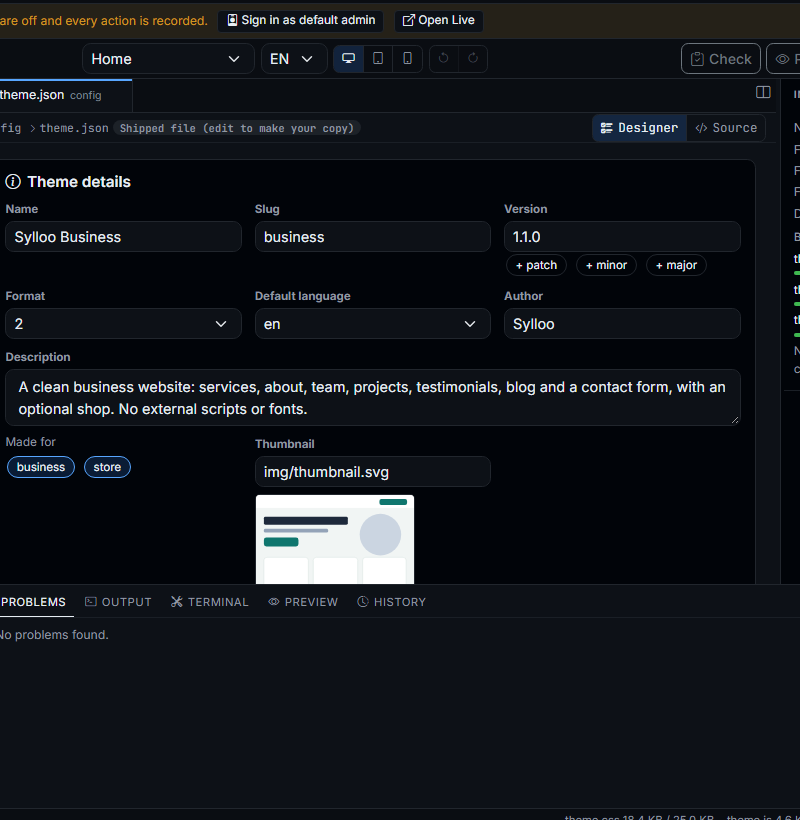 Theme Studio code editor workspace
- Tab bar — Horizontal list of all currently open file tabs showing file icons, names, directory hints, dirty change dots, and tab close buttons.
- Split editor — Action button that toggles a two-column editor layout to display and edit two files side by side.
- Path breadcrumbs — Top path bar showing relative directory levels, origin status chips (
ShippedorCopied), the Designer/Source segment toggle, and the save action button. - Monaco code editor — Professional code canvas with syntax coloring, line numbers, code folding, bracket matching, and context actions.
Managing tabs, views, and assets
The editor adapts automatically to the type of file currently selected:
- File tabs — Multiple files can remain open simultaneously. An orange dot indicates unsaved changes in memory.
- Close tab — Closes the active tab buffer. If unsaved changes exist, Theme Studio prompts you to save.
- Breadcrumb path — Clickable folder hierarchy allowing you to navigate back through parent directories.
- Designer view — Displays structured form inputs for editing section blueprints and theme settings without editing JSON directly.
- Source view — Displays the raw JSON, HTML, CSS, or JavaScript code in the editor.
- Save file — Writes the active file buffer to the working draft (
Ctrl+S). - Asset viewer — For images and fonts in
assets/, displays file previews, dimensions, and file size metadata. - Download file — Downloads the active asset directly to your local computer.
- Replace file — Opens a file upload picker to replace the current asset in your working draft.
- Find usages — Searches all templates and stylesheets for references to the active asset.
- Theme Welcome dashboard — When all tabs are closed, displays the theme name, health checklist, error counts, and quick-start links.
Complete example: Editing a section in split view
Suppose you are updating sections/hero.html and want to reference its schema file sections/hero.json simultaneously:
- Open
sections/hero.htmlfrom the Explorer. - Click the Split editor icon in the tab bar (or press
Ctrl+\). - In the second pane, open
sections/hero.json. - Edit the HTML markup on the left while referencing the setting keys and block types on the right.
- Press
Ctrl+Sto save changes in each pane. - Check the live preview to verify that the template updates accurately.
Result: You edit template markup and schema definitions in tandem without switching between tabs.
How to extend
- Use
Ctrl+Spaceinside HTML templates to trigger Twig autocompletion for variables and filters. - Press
F1orCtrl+Shift+Pwhile focusing the editor to access the full editor command palette.
Rules and pitfalls
- Always save your file buffers before navigating away or switching active themes.
- When splitting panes, closing the last tab in a split column automatically collapses the editor back to a single pane.
- Switching from Designer view to Source view preserves any pending form changes in the code canvas.
Common questions
Can I open multiple files of the same name from different folders?
Yes. File tabs display directory path hints (such as sections or templates) to help you distinguish between files with identical names.
What keyboard shortcut formats the current file?
Press Shift+Alt+F to format HTML, JSON, and CSS files according to standard indentation rules.