
Bottom panel
Access diagnostics, theme tools, output logs, storefront preview, and version history.
Bottom panel
The Bottom panel provides a dockable diagnostics, tooling, and execution drawer at the bottom of Theme Studio. It features five specialised tabs: Problems for theme syntax and linter errors, Output for real-time background logs, Theme tools for automated checks and one-click package actions, Preview for an embedded responsive storefront frame, and History for inspecting drafts, undo/redo steps, and previous published revisions.
Open or collapse the bottom panel at any time by pressing `Ctrl+`` (backtick) or clicking the status bar drawer icon.
When you use this
- Checking diagnostic errors, undeclared section variables, or syntax issues across your theme templates.
- Running automated checks and theme packaging actions directly from the workspace.
- Testing responsive storefront layouts in an interactive embedded preview iframe without switching browser windows.
- Undoing mistakes or restoring previous snapshot revisions from the publication history log.
Before you start
- Open Website Manage → Theme Studio from the Developer Console.
- Click any tab in the bottom bar to expand the panel.
How to use the bottom panel
- Click any tab name (Problems, Output, Theme tools, Preview, or History) in the tab strip.
- In the Problems tab, click any error row to jump directly to the offending file and line number in the editor.
- In the Theme tools tab, click one of the action buttons (Check, Export theme package, Download theme kit, Download theme (zip), Upload pictures or fonts, Upgrade to format 2).
- In the Preview tab, interact with your live storefront. Use the refresh button to reload the frame or click Open in a new tab to pop out the storefront.
- In the History tab, click Undo or Redo to step through recent draft edits, or click Restore on an earlier published entry to revert to that release snapshot.
- Click the collapse chevron icon (Close) on the right of the tab strip to close the drawer.
Every field and control in Bottom panel
The Bottom panel includes the tab strip selector and five interactive workspaces:
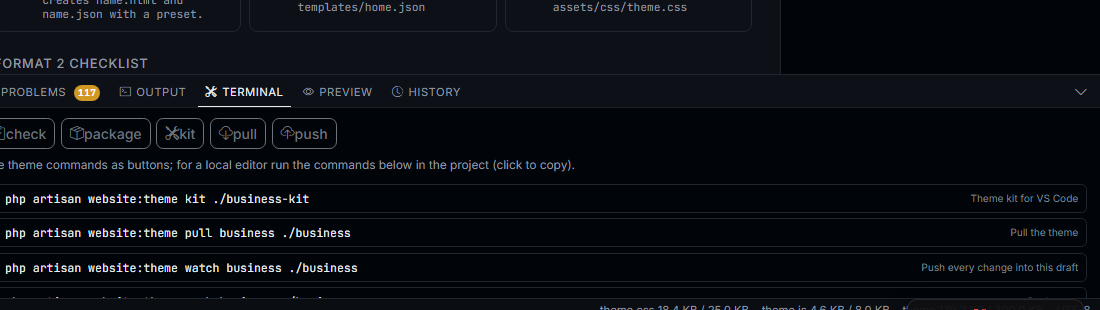 Theme Studio bottom panel workspace and tooling tabs
- Bottom panel tabs and collapse — Navigation strip across the top of the drawer:
- Problems tab — Displays syntax errors, template compilation failures, and missing schema variables, complete with red error and yellow warning badges.
- Output tab — Displays timestamped event logs, asset uploads, search activities, and background responses.
- Theme tools tab — Action buttons for running checks, downloading copies of the theme and uploading pictures and fonts.
- Preview tab — Responsive browser frame rendering the active storefront page.
- History tab — Audit log of recent drafts and all published releases with restore capabilities.
- Close — Chevron button (
v) that collapses the bottom panel down to the status bar.
- Active panel content view — Tooling workspace corresponding to the chosen tab:
- Problems list — Clickable list of issue messages, file paths, line numbers, and quick-fix buttons (
Fix). - Theme tools action toolbar — Action buttons:
- Check — Runs an automated validation check across all theme files.
- Export theme package — Compiles and downloads an export package zip of the current draft.
- Download theme kit — Downloads the starter kit archive for local code editors.
- Download theme (zip) — Downloads the complete theme folder as a zip archive to your computer.
- Upload pictures or fonts — Opens the file picker to upload one or several pictures or fonts into
assets/. Folders and other file types are refused with a message that points to a repository. - Upgrade to format 2 — Upgrades a legacy format 1 theme structure to modern format 2 specifications (visible only when the theme format is 1).
- Preview toolbar and frame — Address bar showing the live URL, Refresh button, pop-out button, and responsive viewport frame.
- History toolbar and table — Action buttons for Undo draft step and Redo draft step, paired with a historical table detailing publication dates, status chips, changed file counts, and Restore buttons.
- Problems list — Clickable list of issue messages, file paths, line numbers, and quick-fix buttons (
Complete example: Checking a theme for problems and packaging for release
Suppose you finished building a new theme and want to verify that there are no syntax errors before packaging:
- In Theme Studio, open the bottom panel and select the Problems tab.
- Verify that the view displays
No problems detected in theme. - Switch to the Theme tools tab.
- Click the Check button in the action toolbar.
- Theme Studio runs an integrity scan across all templates, layouts, sections, and locale files. The scan output confirms zero broken references.
- Click the Export theme package button.
- The system packages your theme into an installable distribution zip and prompts your browser to download it.
- Switch to the History tab to verify that the draft snapshot is recorded.
Result: The theme is validated, compiled, and downloaded cleanly without manual file zipping.
How to extend
- Keep the Preview tab open while editing templates on secondary monitors to watch live CSS updates in real time.
- To edit theme files in your own editor, keep the theme in a repository. See Getting started with theme versions.
Rules and pitfalls
- Restoring an older release snapshot from the History table replaces your current working draft; ensure uncommitted edits are packaged first.
- The Preview tab renders using the current storefront theme settings and test catalogue records.
Common questions
What does the Fix button do in the Problems tab?
When the linter detects an undeclared section setting (such as settings.subheading used in HTML without an entry in the .json schema), clicking Fix automatically declares the missing setting with default text values.
Can I resize the bottom panel? Yes. Hover your cursor over the top border of the bottom panel until a vertical resize cursor appears, then drag up or down to adjust its height.
Related pages
- Explorer — File management, uploads, downloads, and directory navigation.
- Editor — Code editor, Monaco shortcuts, tabs, and split views.
- Package — Exporting, importing, and Theme Kit setup.
- Status bar — Workspace statistics, error counters, and quick toggles.