
Assets
Preview, replace, download, inspect file sizes, and track usages of static theme media and font assets.
Assets
The Assets viewer provides a dedicated media inspection and management interface in Theme Studio. It allows developers to view image files, preview font typefaces, inspect file sizes, download original binaries, upload replacement files in place, and track all template usages across the theme.
All static theme media files live under the
assets/directory (for exampleassets/images/,assets/fonts/, orassets/css/). Theme templates reference them using the relative path or theme asset helpers.
When you use this
- Inspecting newly uploaded logos, icons, banners, and typography fonts in Theme Studio.
- Replacing an existing image or font file with an updated version without changing template references.
- Downloading theme assets directly to your local computer for editing in external design software.
- Finding all templates, sections, and stylesheets that reference a specific asset before renaming or deleting it.
Before you start
- Open Website Manage → Theme Studio from the Developer Console.
- In the Explorer sidebar, expand the
assets/directory.
How to use the assets viewer
- In the Explorer, locate and click any media file under
assets/(such asassets/images/logo.png). - The asset opens in the editor area, displaying the Asset preview canvas.
- Inspect the file details shown in Asset path and size.
- To save a copy of the binary to your local workstation, click Download.
- To update the file with a fresh revision while preserving its name, click Replace file and select your new file.
- To audit where the file appears across your templates, click Find usages.
- To upload brand-new assets, use the Upload pictures or fonts button in the Explorer or drag files into the directory tree.
Every field and control in Assets
The Assets viewer provides an interactive preview canvas, file metadata, and an action toolbar:
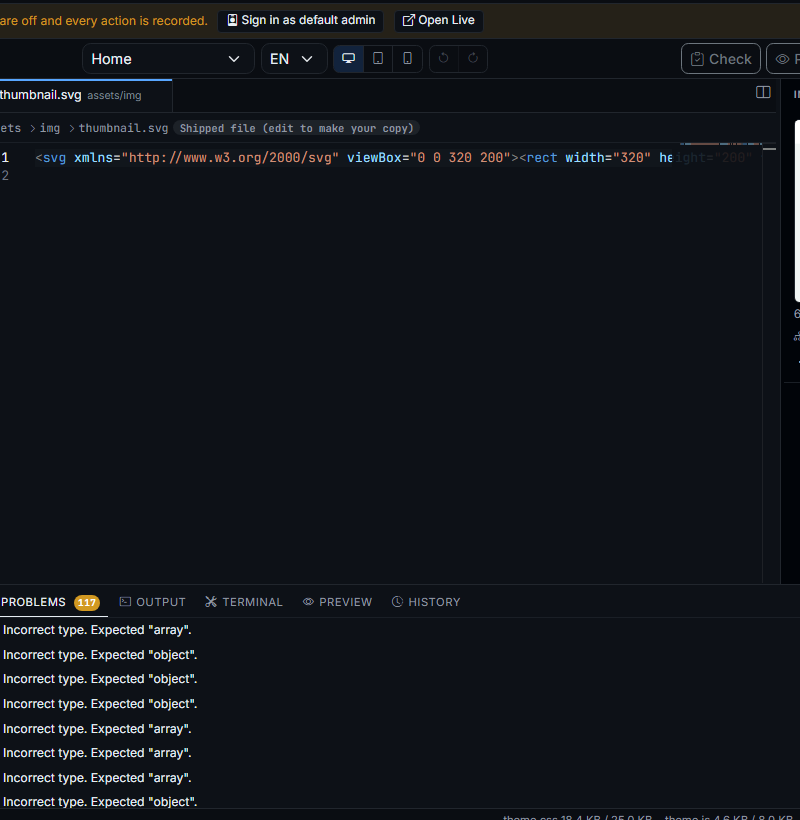 Theme Studio asset viewer and controls
- Asset preview canvas — Rendering area displaying the visual content of the file:
- Image view — Renders PNG, JPG, WebP, SVG, and GIF images on a transparent checkerboard pattern.
- Font preview — Renders sample typography sentences (
Aa Bb Cc 0123 — The quick brown fox) when opening WOFF, WOFF2, or TTF files.
- Asset path and size — Informational label showing relative path (such as
assets/images/hero.webp) and human-readable file size in kilobytes. - Asset action toolbar — Action buttons for managing the current asset:
- Download — Saves the original asset file directly to your local downloads folder.
- Replace file — Opens the operating system file picker to upload a new binary that overwrites the existing file in place.
- Find usages — Executes a theme-wide search for the asset name across all HTML, JSON, and CSS files, showing results in the Search panel.
- Upload pictures or fonts — Upload action available in the Explorer sidebar to add new files into
assets/.
Complete example: Replacing an outdated store logo and checking usages
Suppose your store rebranded and you want to replace assets/images/logo.png and ensure all templates reference it correctly:
- In the Theme Studio Explorer, navigate to
assets/images/and clicklogo.png. - The current logo renders in the Asset preview canvas. Check the Asset path and size label to note the current file size.
- Click Find usages.
- The Search sidebar opens automatically, listing matches in
sections/header.htmlandsections/footer.html. - Click Replace file in the asset toolbar.
- Select the newly designed logo from your computer. The preview canvas updates immediately with the new graphic.
- Open
sections/header.htmlfrom the search results to confirm that the layout accommodates the new logo dimensions. - Click Save (
Ctrl+S) or publish your working draft in the Title bar.
Result: The logo asset is updated across all storefront sections without breaking existing code references.
How to extend
- Organise large asset libraries into subdirectories like
assets/icons/,assets/images/, andassets/fonts/. - Use vector SVGs for icons and logos to ensure crisp rendering across all screen resolutions.
- Run Find usages before cleaning up old assets to avoid broken images on the live storefront.
Rules and pitfalls
- Replacing a file overwrites the existing file in your working draft immediately.
- Asset paths referenced in section schemas or templates are case-sensitive.
- Always compress high-resolution photography before uploading to maintain optimal page load speeds.
Common questions
Which image formats can I preview in Theme Studio? Theme Studio previews PNG, JPG, JPEG, WebP, SVG, GIF, and ICO image formats directly in the editor.
What happens when I click Find usages?
The tool searches every file in the theme for the relative filename (such as logo.png or images/logo.png). It displays the matching files and line numbers in the Search panel so you can jump directly to any reference.