
Developer sign-in
How developers sign in to the Developer Console with a password and a mandatory two-factor code.
Developer sign-in
Developers access their workspace through a dedicated entryway: https://gmhomeohall.sylloo.app/developer/login. This door is separate from the staff sign-in, maintains its own isolated session, and always requires two-factor verification.
On the Live host, the developer door opens only while the business has an active paid subscription plan. Without an active subscription, the address returns a not found response.
When you use this
- You receive an invitation from a store owner to build or customize an ERP theme.
- You need to access the Developer Console in Practice mode to test custom themes and configure store templates.
- You configure custom webhooks and print templates in an isolated practice environment.
- The business owner requests custom script development or ledger tag configurations.
Before you start
- Have your developer account email address and password ready.
- Keep your phone or authenticator app (such as Google Authenticator or 1Password) ready for two-factor verification.
- Obtain the store's web address from the business owner.
Open the developer sign-in screen
Navigate to /developer/login on the business store domain in your web browser.
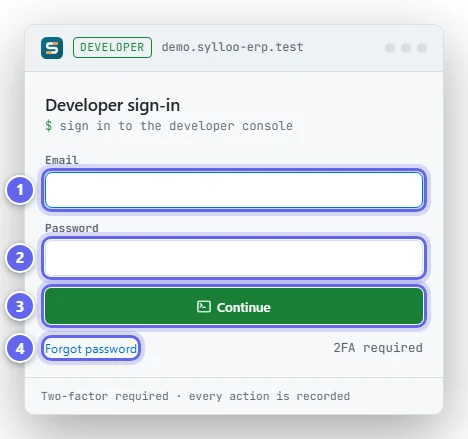 The developer sign-in page
- Email — type the email address of your developer account.
- Password — type your developer account password.
- Continue — submits your credentials and advances to the two-factor verification step.
- Forgot password — request a password reset link to your developer email address.
Enter your two-factor code
Click Continue to open the verification step. The screen prompts you for a six-digit code:
- First sign-in: The system presents a QR code along with a secret key. Scan the QR code with your authenticator app or type the key manually. Then enter the code.
- Subsequent sign-ins: Open your authenticator app. Enter the current six-digit code for this store.
- Landing destination: On Live store addresses, sign-in carries you into the Developer Console in Practice mode. Developers always land in Practice mode to protect store data.
Every field on the developer sign-in screen
| Field | What it is for | Example | Required? | Default | What happens when changed | What depends on it |
|---|---|---|---|---|---|---|
| The registered email address of your developer account. | [email protected] |
Yes | Blank | System looks up the developer profile. | Validates account existence and developer permissions. | |
| Password | Your confidential developer password. | •••••••• |
Yes | Blank | Checked against stored security credentials. | Five incorrect entries trigger a temporary lockout. |
| Continue | Button to submit credentials and move to step two. | Click button | Required | — | Submits credentials and opens the two-factor prompt. | Two-factor verification challenge. |
| Forgot password | Link to request a password reset email. | Click link | Optional | — | Navigates to the password recovery screen. | Sends password reset email link. |
Example
David is an external theme developer hired by Rahim Textiles:
- David opens
http://demo.sylloo-erp.test/developer/loginin his browser. - He enters
[email protected]into the Email field and types his password into Password. - He clicks Continue.
- The system prompts him for his two-factor authentication code.
- David opens Google Authenticator on his mobile phone and enters the six-digit code.
- The system verifies the code and opens the Developer Console in Practice mode.
Common questions
What happens if I enter the wrong password or two-factor code? After 5 incorrect attempts, the developer sign-in door pauses for 5 minutes to prevent unauthorized access. Sign-ins from unrecognized countries or devices automatically trigger security alert notifications to the store owner.
Can I sign in to the Live store directly? No. Developers always sign in directly into Practice mode. Accessing Live data from the Developer Console requires a temporary, time-limited Live access grant issued by the store owner.
What should I do if I lose access to my authenticator app? Because two-factor authentication is mandatory for all developer accounts, you cannot sign in without your code. Contact Sylloo support to verify your identity and reset your developer two-factor credentials.
Related pages
- Signing in — Standard staff and manager sign-in guide.
- Product list — View catalog products.