
Slider Setting
View and manage website hero slider schemas, carousel locations, and slide schema parameters.
Slider Setting
Slider Setting enables developers to view, search, and manage website hero slider schemas, homepage carousel locations, and custom slide parameters for public website themes.
Slider schemas provide the visual definition for the Member Area slider manager and website themes, dictating what elements (such as hero images, heading typography, call-to-action buttons, or slide animations) can be configured on each slide.
When you use this
- Reviewing all configured website hero sliders and promotional carousel locations.
- Searching for specific slider schemas by title or technical identifier.
- Exporting slider schemas to Excel or CSV for documentation and development reviews.
- Opening the editor to configure new or existing slider schemas.
Before you start
- Sign in to the Developer Console with your developer credentials and two-factor code.
- Ensure website theme templates support the specified slider location names in their theme layouts.
- Familiarize yourself with the visual schema builder data types.
Open the slider settings screen
In the Developer Console left navigation explorer, under the Website section, click Slider Setting.
Search or filter slider schemas
Use the live Search bar above the datatable to find slider schemas by title or identifier. Adjust visible records with the Show dropdown.
Manage columns or export
Click Columns to toggle visible table columns, or click Export to download the records as Excel or CSV.
Open the creation window
Click slider_setting_add in the top right corner above the datatable to open Slider Setting Edit.
Every field on this screen
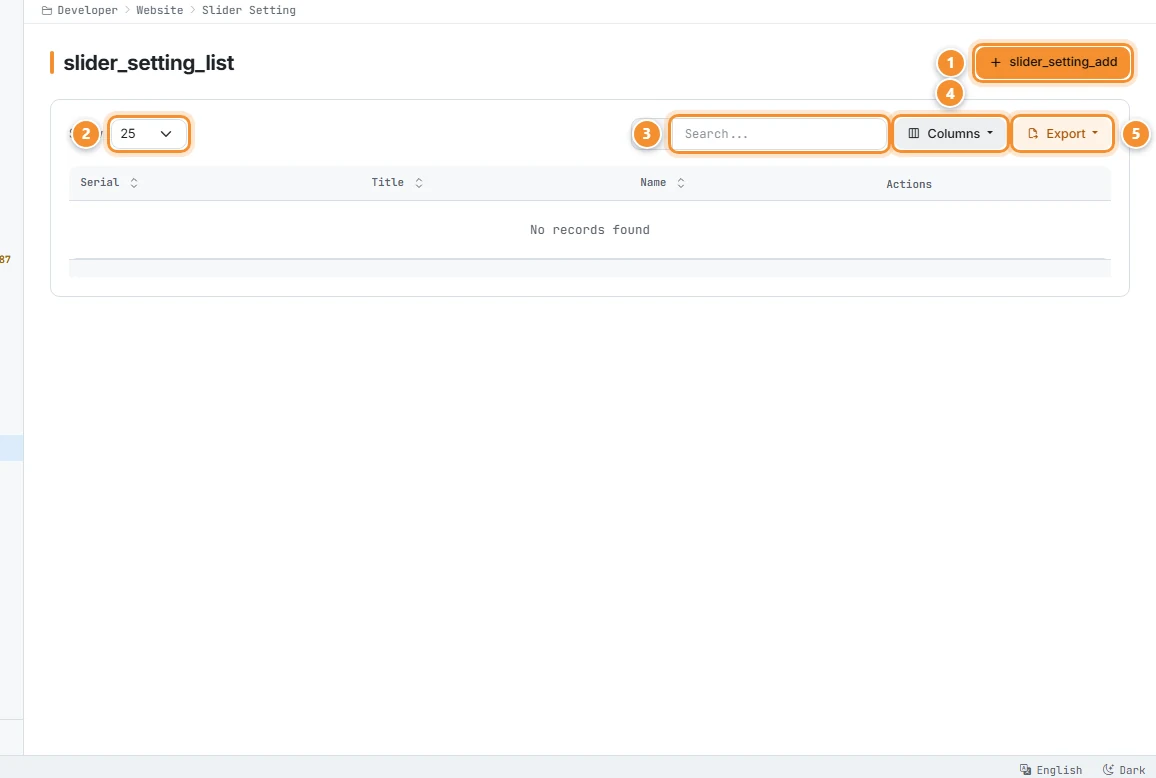 The slider schema list and settings screen
- slider_setting_add — opens the modal window to create a new website slider and carousel schema.
- Show — controls how many slider schema records to display per table page (10, 25, 50, 100, or 250).
- Search — real-time filter searching slider schemas by title or technical identifier.
- Columns — dropdown menu toggling visibility of table columns (Serial, Title, Name, and Actions).
- Export — exports the visible slider schemas table to Excel or CSV format.
In the table, each row displays Serial, Title, Name, and action buttons to modify or Delete records.
Complete example: Auditing active website banner sliders
Suppose a content manager needs to check which promotional carousels are registered:
- Navigate to Slider Setting in the Developer Console navigation.
- In the Search input, type
Hero. - The table displays all matching banner carousel schemas along with their unique technical names (such as
home_slider). - Click Export to save the verified configurations to an Excel spreadsheet for the digital marketing team.
How to extend
- Add custom slide parameters like mobile banners or CTA button styles in Slider Setting Edit.
- Access custom slide attributes in website theme templates using their identifiers.
- Pair with Menu Setting to manage all public website navigation and presentation schemas.
Rules and pitfalls
- Deleting an active slider schema removes the carousel location from the client slider manager.
- Technical names must remain unique across all slider configurations.
- Schema parameter identifiers must use lowercase alphanumeric snake_case strings.
Common questions
Where do marketing staff upload actual slide images and text? Marketing and content teams add slides, titles, and pictures under the Website slider manager.
Can a slider support different banner images for mobile and desktop? Yes. You can configure separate desktop and mobile image upload attributes in Slider Setting Edit.