
Order Setting Edit
Configure order workflow parameters, stock/ledger effects, invoice layouts, and custom schema fields in the Order Setting window.
Order Setting Edit
The Order Setting Edit window allows developers to define commercial transaction workflows, configure stock movement and financial ledger postings, assign invoice print templates, and build custom parameter schemas. Custom schema fields defined here appear on order entry screens in the sales and purchasing apps so staff can capture transaction-specific data.
When you use this
- Configuring commercial workflows: define specialized order types such as wholesale trade orders, retail counter sales, vendor purchase orders, or warranties.
- Toggling stock and ledger effects: specify whether transactions update inventory balances and automatically generate general ledger vouchers.
- Setting up POS and eCommerce channels: designate order workflows for in-person cashier registers or storefront checkout.
- Requiring manager approval: mandate supervisor sign-off before orders of this type can be delivered or finalized.
What you work with
- Basic tab: primary classification identity, transaction direction, associated party types, invoice layout, and operational flags.
- Additional Fields tab: an interactive schema builder to add, configure, reorder, duplicate, and remove custom attributes.
- Ledger accounts tab: mappings linking order transactions to general ledger accounts for revenue, cost of goods, and receivables.
How it works for you
- On the Order Setting list, click Order Setting Add or click edit on an existing row.
- Under the Basic tab, enter the display Title and unique technical key Name.
- Select the commercial direction under Type (Sale, Purchase, Return, or Quotation).
- Specify default party, delivery, and product classifications, and assign an invoice print layout.
- Toggle operational switches for stock tracking, ledger entries, POS mode, or supervisor approval.
- Switch to the Additional Fields tab to view or manage custom parameter fields.
- Click Add field to create a new parameter or click Edit field on an existing row.
- Fill in the field label, identifier, input type, and guidance text.
- Click Update field to save changes to the parameter.
- If general ledger integration is active, switch to Ledger accounts to map financial postings.
- Save the window to finalize the order workflow.
Every field on this screen
Basic tab
The Basic tab configures the transaction direction, numbering rules, channel flags, and catalog integrations.
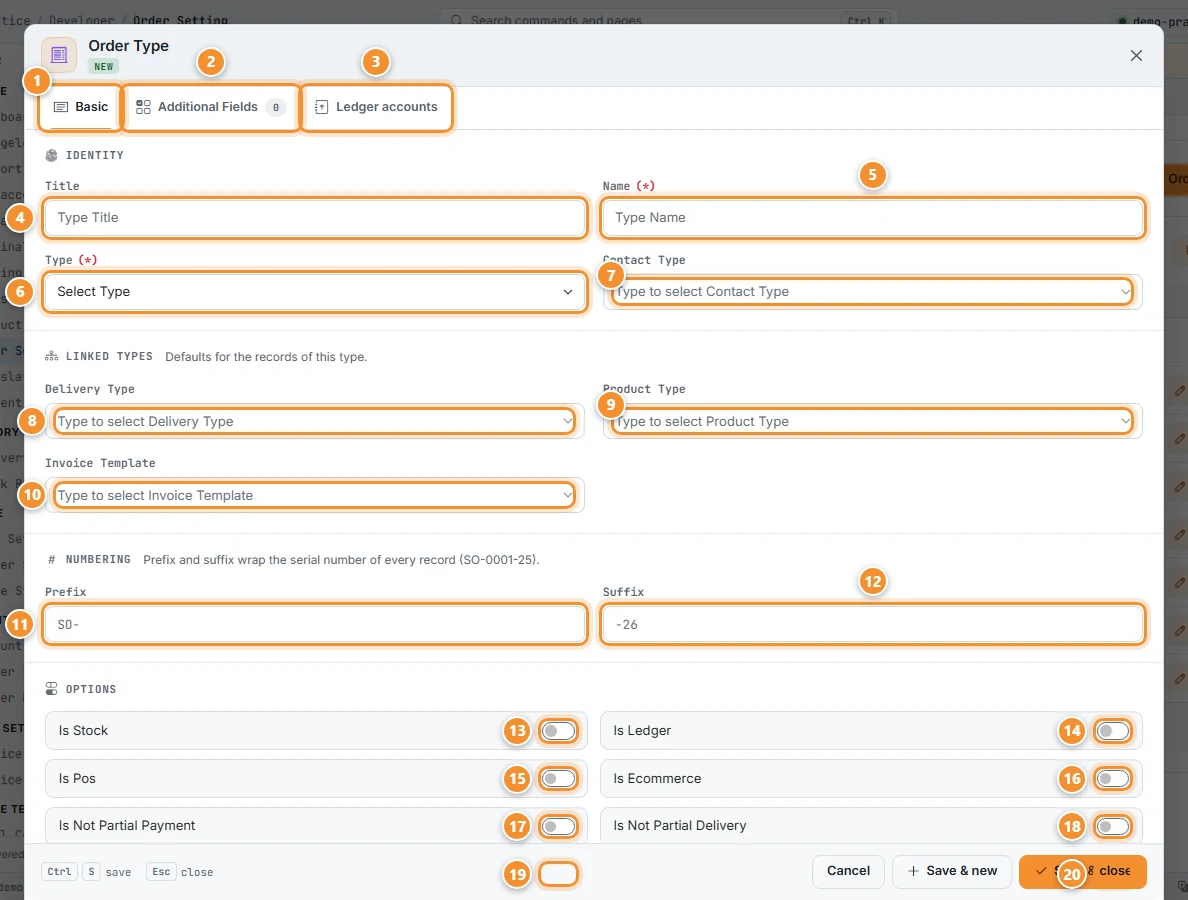 Configuring order type basic settings
- Basic — tab containing primary classification settings and feature switches.
- Additional Fields — tab switching to the custom parameter schema builder.
- Ledger accounts — tab switching to general ledger account mappings.
- Title — human-readable label shown on order entry screens and reports. Example:
Wholesale Order. Required. - Name — unique technical identifier key without spaces or special characters. Example:
wholesale_order. Required. - Type — commercial direction dropdown (Sale, Purchase, Return, or Quotation). Required.
- Contact Type — default party classification filter applied when selecting buyers or vendors for this order type.
- Delivery Type — default fulfillment method associated with this order workflow.
- Product Type — default merchandise category filter applied when picking order line items.
- Invoice Template — layout template used when printing receipts, delivery notes, or invoices for this transaction.
- Prefix — optional text automatically prepended to generated order serial numbers (such as
SO-). - Suffix — optional text automatically appended to order serial numbers.
- Is Stock — switch enabling automatic inventory deductions or additions when orders are confirmed.
- Is Ledger — switch enabling automatic financial voucher creation in accounting ledgers.
- Is Pos — switch designating this order type for use in Point of Sale cashier registers.
- Is Ecommerce — switch designating this order type for web storefront checkout orders.
- Is Not Partial Payment — switch requiring full payment up-front and disabling split or installment settlements.
- Is Not Partial Delivery — switch requiring complete fulfillment in a single shipment and disabling partial deliveries.
- Is Not Payment Status — switch hiding payment status badges and tracking from the order form.
- Is Not Delivery Status — switch hiding fulfillment progress badges from the order form.
- Is Not Delivery Date — switch hiding target delivery date scheduling inputs.
- Approval needed — switch requiring a supervisor or manager approval before transactions of this type can be fulfilled.
Additional Fields tab
The Additional Fields tab lets you attach custom schema attributes to the order type.
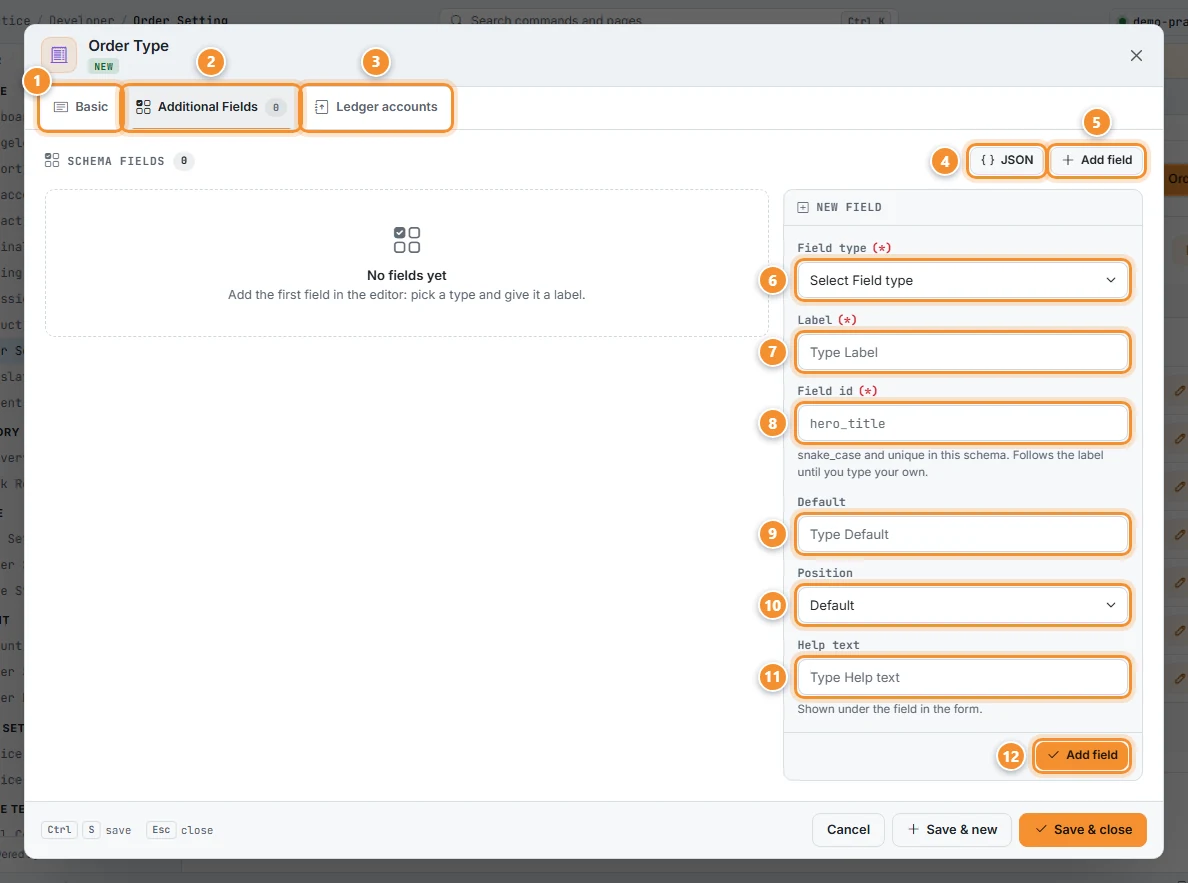 Configuring order type additional schema fields
- Basic — tab switching back to primary workflow settings.
- Additional Fields — tab displaying the parameter schema builder.
- Ledger accounts — tab switching to general ledger account mappings.
- JSON — view mode showing structured schema definitions in raw text format.
- Add field — button creating a new parameter row in the schema builder.
- Field type — dropdown selecting the input control type (Text, Number, Select, Date, Checkbox, Textarea, Media).
- Label — human-readable title displayed next to the field on order entry screens. Example:
Delivery Time Window. - Identifier — unique variable key for this attribute (the Field id). Example:
delivery_window. - Default — optional initial value pre-filled when staff create a new order of this type.
- Position — integer determining the display order of the attribute within the order form.
- Help text — explanatory guidance displayed below the field to assist sales staff.
- Save field — button (labeled Update field) applying your parameter settings to the schema.
Ledger accounts tab
The Ledger accounts tab maps transaction movements to specific accounting ledger accounts when Is Ledger is enabled.
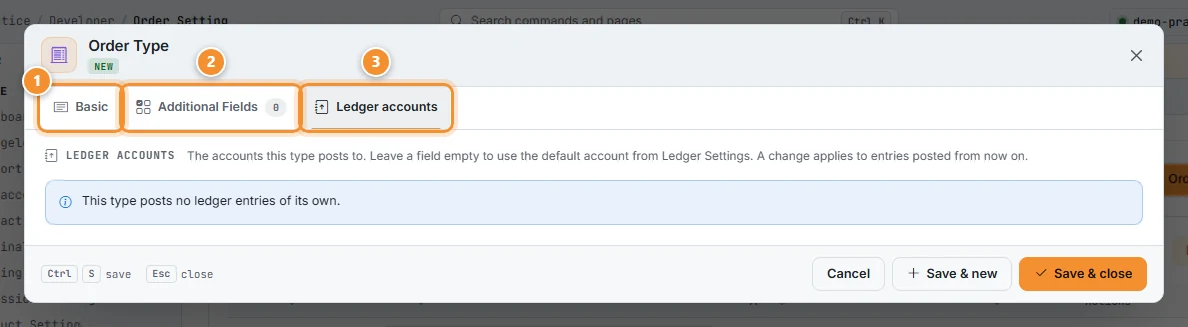 Configuring order type ledger account mappings
- Basic — tab switching back to primary workflow settings.
- Additional Fields — tab displaying the parameter schema builder.
- Ledger accounts — tab displaying account selection dropdowns for sales revenue, inventory asset valuation, and accounts receivable.
Complete example: Defining a "B2B Trade Order" workflow
Suppose you operate a wholesale business and require sales reps to record a customer purchase order reference and preferred shipping carrier:
- Click Order Setting Add.
- On the Basic tab:
- Title:
B2B Trade Order - Name:
b2b_trade - Type:
Sale - Prefix:
B2B- - Is Stock: Switch ON (deducts warehouse inventory on shipment).
- Is Ledger: Switch ON (posts revenue and receivables to accounting ledgers).
- Approval needed: Switch ON (requires manager review before fulfillment).
- Title:
- Switch to the Additional Fields tab and click Add field:
- Field type: Text
- Label:
Customer PO Reference - Identifier:
customer_po - Help text:
Enter the official buyer purchase order reference code.
- Click Update field.
- Click Add field again:
- Field type: Select
- Label:
Shipping Carrier - Identifier:
shipping_carrier - Options:
DHL,FedEx,UPS,Local Freight
- Click Update field.
- Save the window.
- When sales reps create an order and choose
B2B Trade Order, the Customer PO Reference and Shipping Carrier fields appear immediately.
How to extend
- Print custom fields on invoices and delivery notes: output custom values in print templates:
{% if order.customer_po %} <p>Customer PO: {{ order.customer_po }}</p> {% endif %} - Filter order lists by classification: query transactions by technical key:
{% set b2b_orders = find_orders({'type': 'b2b_trade'}) %} - Automate approvals: configure user roles to grant supervisor approval rights for pending orders.
Rules and pitfalls
- Unique name keys: every order type must have a unique
namevalue without spaces or special characters. - Accurate commercial direction: always verify the primary Type because stock and tax rules operate differently for sales versus purchases.
- Ledger mapping validation: ensure revenue and asset accounts are properly mapped before enabling Is Ledger to avoid accounting posting errors.
Common questions
Can I disable stock deductions for quote-only order types?
Yes. For quotation or estimate order types, turn Is Stock OFF and Is Ledger OFF so draft quotes do not adjust physical inventory or book financial balances.
Can an order type be used in both POS registers and online checkout?
Yes. You can switch both Is Pos and Is Ecommerce ON if the workflow applies to counter sales and web orders alike.
Related pages
- Order Setting — viewing and managing the list of all registered order workflows.
- Contact Setting — configuring customer and supplier classifications.
- Product Setting — setting up product classifications and schema parameters.
- Developer sign-in — accessing the Developer console.