
Slider Setting Edit
Create or modify website hero slider schemas, carousel locations, and custom slide parameters.
Slider Setting Edit
The Slider Setting Edit window enables developers to configure website hero slider schemas, homepage carousel locations, and custom slide parameters for public website themes.
Slider schemas provide the visual definition for the Member Area slider manager and website themes, dictating what elements (such as hero images, heading typography, call-to-action buttons, or slide animations) can be configured on each slide.
When you use this
- Creating a new carousel location for website themes, such as
Homepage Hero Slider,Brand Partners Carousel, orTestimonials Carousel. - Extending slide items with custom fields (such as slide subtitle, button text, target URL, background color, or overlay opacity).
- Giving marketing teams flexible controls over slide typography and button alignment without editing template code.
- Defining structured slide data collections consumed by website templates.
Before you start
- Open Slider Setting and click slider_setting_add or click an existing record's edit button.
- Ensure website theme templates support the specified slider location names in their theme layouts.
- Familiarize yourself with the visual schema builder data types.
Define title and technical name
Enter the Title displayed to theme designers (e.g. Homepage Hero Slider). Enter the unique technical Name used in website templates (e.g. home_slider).
Add custom slide attributes
Use the visual schema field builder to configure slide attributes. Click Add field, select the Field type (such as Image Upload, Text, Color Picker, Spacing, Range, or Category), enter the Label, unique Identifier, and optional Default value.
Save the slider schema
Click Save & close at the bottom of the window to apply your changes and refresh the list.
Every field on this screen
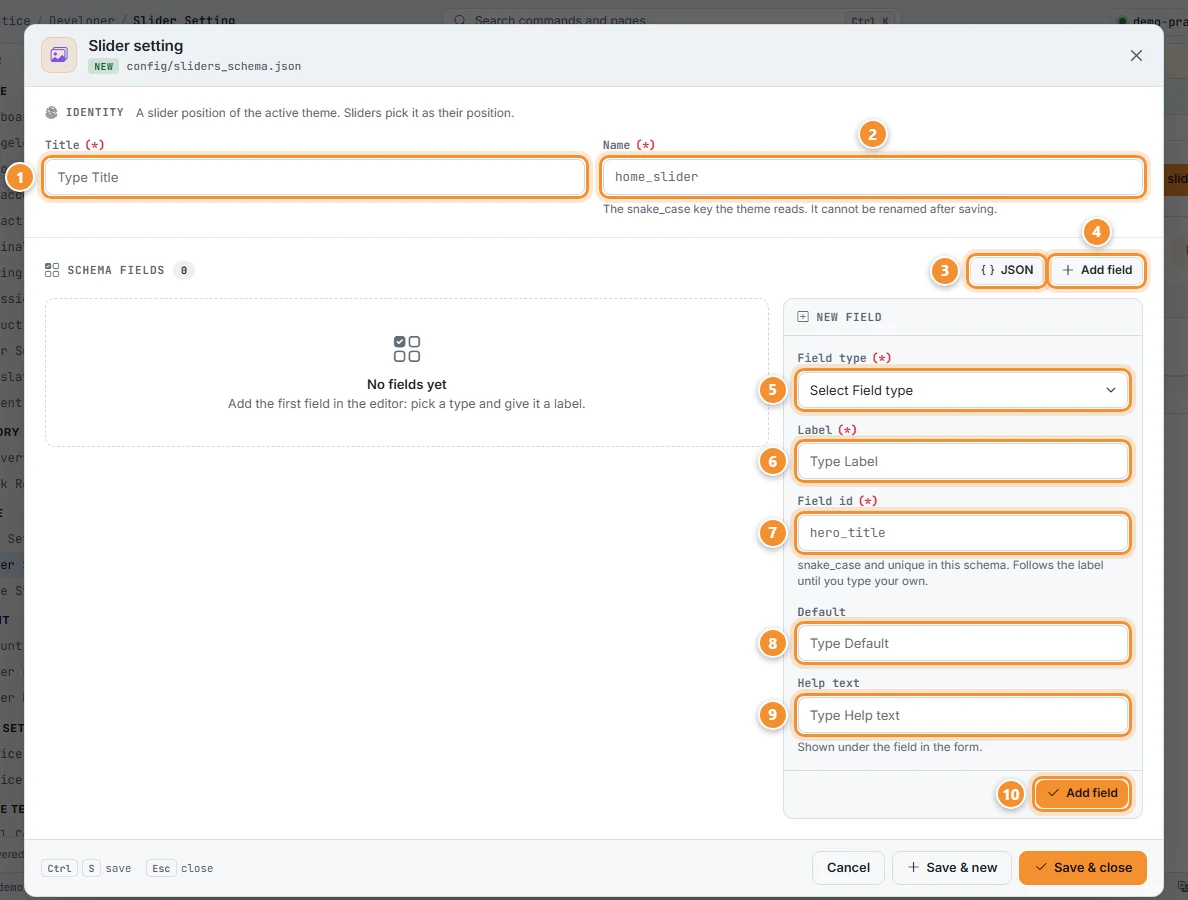 Adding or changing a slider schema definition
- Title — display name shown to theme designers and website managers (e.g.
Homepage Slider). - Name — unique technical snake_case identifier used in templates (e.g.
home_slider). - JSON — toggle view displaying the live generated JSON schema code.
- Add field — button opening the attribute editor to append a new custom slide parameter.
- Field type — dropdown selecting the input control type (Text, Select, Image Upload, Checkbox, Radio, Color Picker, Range, Spacing, Category, etc.).
- Label — user-facing field label rendered on slide item edit forms (e.g.
Slide Subtitle). - Identifier — unique snake_case schema key stored in JSON and accessed in templates (e.g.
subtitle). - Default — optional preset initial value automatically filled on new slide entries.
- Help text — explanatory guidance displayed beneath the field on member forms.
- Save field — button committing this custom attribute into the slider schema.
Complete example: Configuring a "Homepage Hero" slider schema
Suppose you need to configure a hero slider schema that allows marketing staff to upload desktop and mobile banners with a call-to-action button:
- In Slider Setting, click slider_setting_add.
- Set Title to
Homepage Hero Slider. - Set Name to
home_hero. - Click Add field:
- Set Field type to
Image Upload. - Set Label to
Hero Desktop Banner. - Set Identifier to
hero_desktop. - Click Save field.
- Set Field type to
- Click Add field again:
- Set Field type to
Text. - Set Label to
CTA Button Label. - Set Identifier to
button_label. - Click Save field.
- Set Field type to
- Click Save & close.
When marketing staff manage slides in the Website module, each slide prompts for a desktop banner and a button label, feeding data into public website templates.
How to extend
- Access slide parameters directly in theme templates using their identifiers.
- Add responsive alignment or spacing controls to customize layout appearance without writing CSS.
- Pair with Menu Setting to complete public website structure definitions.
Rules and pitfalls
- The technical Name must be unique and contain only lowercase alphanumeric characters and underscores.
- Schema parameter identifiers must be unique snake_case strings.
- Disabling or removing attributes from a slider schema hides them on existing slides.
Common questions
Can slide items include links to product categories?
Yes. You can add a Category or Product field type to let marketing staff link slides directly to store catalog items.
Where do staff upload slide pictures and text? Staff upload media and enter slide details under the Website module slider management area.