
Menu Setting Edit
Create or modify website menu schemas, navigation locations, and custom link attributes.
Menu Setting Edit
The Menu Setting Edit window enables developers to define website menu schemas, navigation locations, and custom schema attributes for public website templates.
Menu schemas provide the blueprint for the Member Area menu builder and website themes, dictating what parameters (such as icons, badges, colors, or category links) can be attached to navigation items.
When you use this
- Creating a new navigation location for website themes, such as
Header Primary Menu,Footer Quick Links, orMobile Drawer Menu. - Extending menu item schemas with custom attributes (such as badge text, badge color, font icons, or promotional tags).
- Enabling client website administrators to assign categories or products directly to custom navigation links.
- Structuring multi-level navigation trees consumed by website templates.
Before you start
- Open Menu Setting and click Add Menu Setting or click an existing record's edit button.
- Ensure website theme templates support the specified menu location names in their theme layouts.
- Familiarize yourself with the visual schema builder data types.
Define title and technical name
Enter the Title displayed to theme designers (e.g. Main Navigation Menu). Enter the unique technical Name used in website templates (e.g. main_menu).
Add custom link attributes
Use the visual schema field builder to add link attributes. Click Add field, select the Field type (such as Text, Image Upload, Color Picker, or Category), enter the Label, unique Identifier, and optional Default value.
Save the menu schema
Click Save & close at the bottom of the window to apply your changes and refresh the list.
Every field on this screen
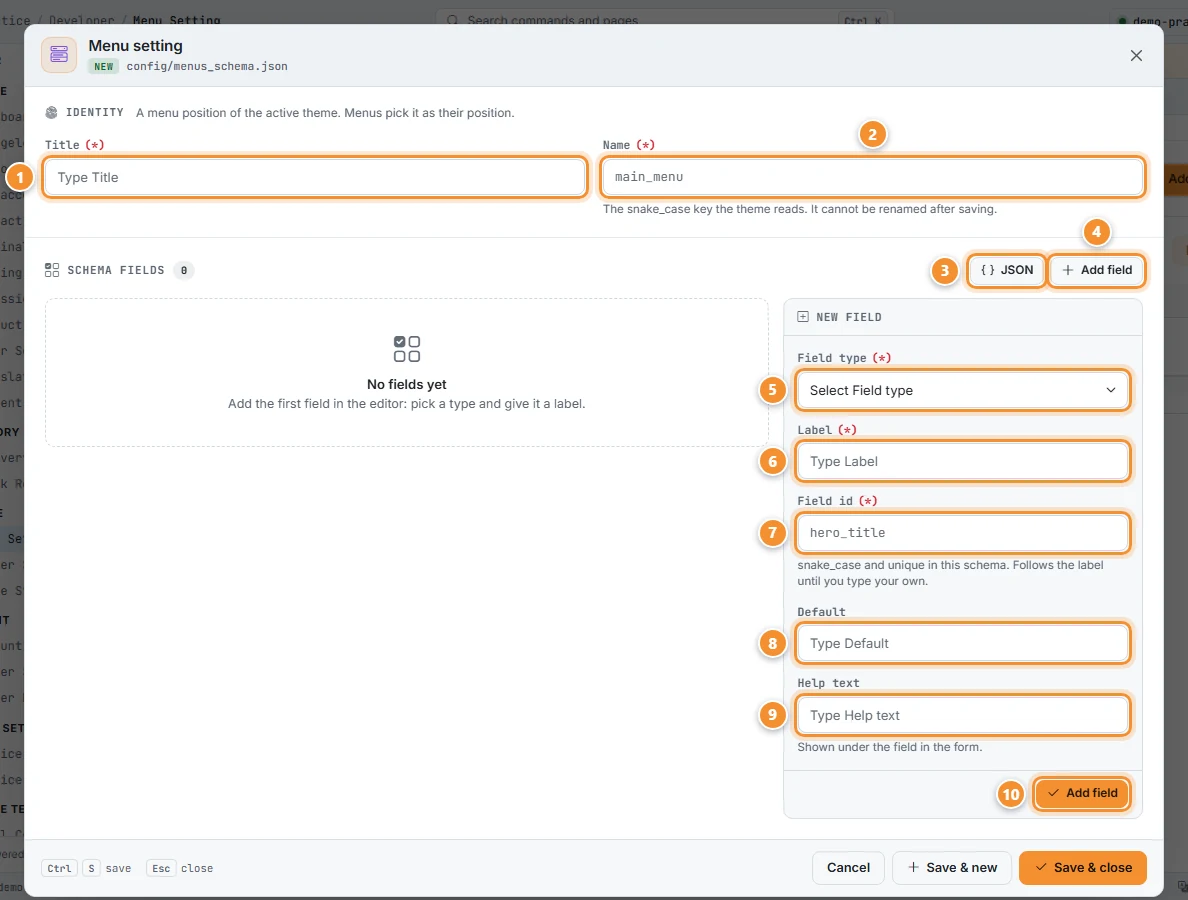 Adding or changing a menu schema definition
- Title — display name shown to theme designers and website managers (e.g.
Header Menu). - Name — unique technical snake_case identifier used in templates (e.g.
header_menu). - JSON — toggle view displaying the live generated JSON schema code.
- Add field — button opening the attribute editor to append a new custom link parameter.
- Field type — dropdown selecting the input control type (Text, Select, Image Upload, Checkbox, Radio, Color Picker, Category, Brand, Product, etc.).
- Label — user-facing field label rendered on menu item edit forms (e.g.
Highlight Badge Text). - Identifier — unique snake_case schema key stored in JSON and accessed in templates (e.g.
badge_text). - Default — optional preset initial value automatically filled on new menu items.
- Help text — explanatory guidance displayed beneath the field on member forms.
- Save field — button committing this custom attribute into the menu schema.
Complete example: Configuring a "Main Header Menu" schema
Suppose you need to configure a header navigation schema that allows adding promo badges and custom badge colors:
- In Menu Setting, click Add Menu Setting.
- Set Title to
Main Header Menu. - Set Name to
main_menu. - Click Add field:
- Set Field type to
Text. - Set Label to
Badge Text. - Set Identifier to
badge_text. - Click Save field.
- Set Field type to
- Click Add field again:
- Set Field type to
Color Picker. - Set Label to
Badge Color. - Set Identifier to
badge_color. - Click Save field.
- Set Field type to
- Click Save & close.
When website administrators add links to the Main Header Menu, they can enter badge text (like "Hot" or "Sale") and pick custom colors that render directly on the front-end website.
How to extend
- Access menu attributes directly in theme templates using their identifiers.
- Add category or product selector attributes to create dynamic mega-menus.
- Pair with Slider Setting to manage all promotional website banners.
Rules and pitfalls
- The technical Name must be unique and contain only lowercase alphanumeric characters and underscores.
- Field identifiers must be unique snake_case strings.
- Removing an attribute from an active schema hides it on existing menu items.
Common questions
Can menu items include dropdown sub-menus? Yes. Multi-level nesting is configured visually by website managers in the Website menu management area.
Where is the schema code consumed? Website theme templates read these schema definitions to render navigation layouts and badges on public pages.