
Ledger Setting
Configure system accounting ledger tags and default automated posting accounts in Developer Console.
Ledger Setting
Ledger Setting connects core business operations like sales, purchases, discounts, and returns to exact accounts in the Chart of Accounts. Developers map default posting destinations to govern automated double-entry postings.
When automated accounting is active, sales and purchases generate double-entry vouchers automatically based on these ledger tag mappings.
When you use this
- Setting up a store's automated double-entry accounting rules after creating the Chart of Accounts.
- Redirecting sales discount or purchase return postings to specialized revenue or expense accounts.
- Mapping default sales revenue accounts for newly onboarded business units.
- Ensuring consistent general ledger account assignments across POS and e-commerce transactions.
Before you start
- Ensure the business has created essential accounts in Chart of Accounts.
- Sign in to the Developer Console with your developer credentials and two-factor code.
- Verify account codes and ledger titles with your financial controller.
Open the ledger settings screen
In the Developer Console left navigation explorer, under the Account section, click Ledger Setting.
Map system ledger tags
Select the appropriate ledger account for each transaction type using the searchable dropdowns.
Save the configuration
Click the save action button to store your accounting ledger mappings.
Every field on this screen
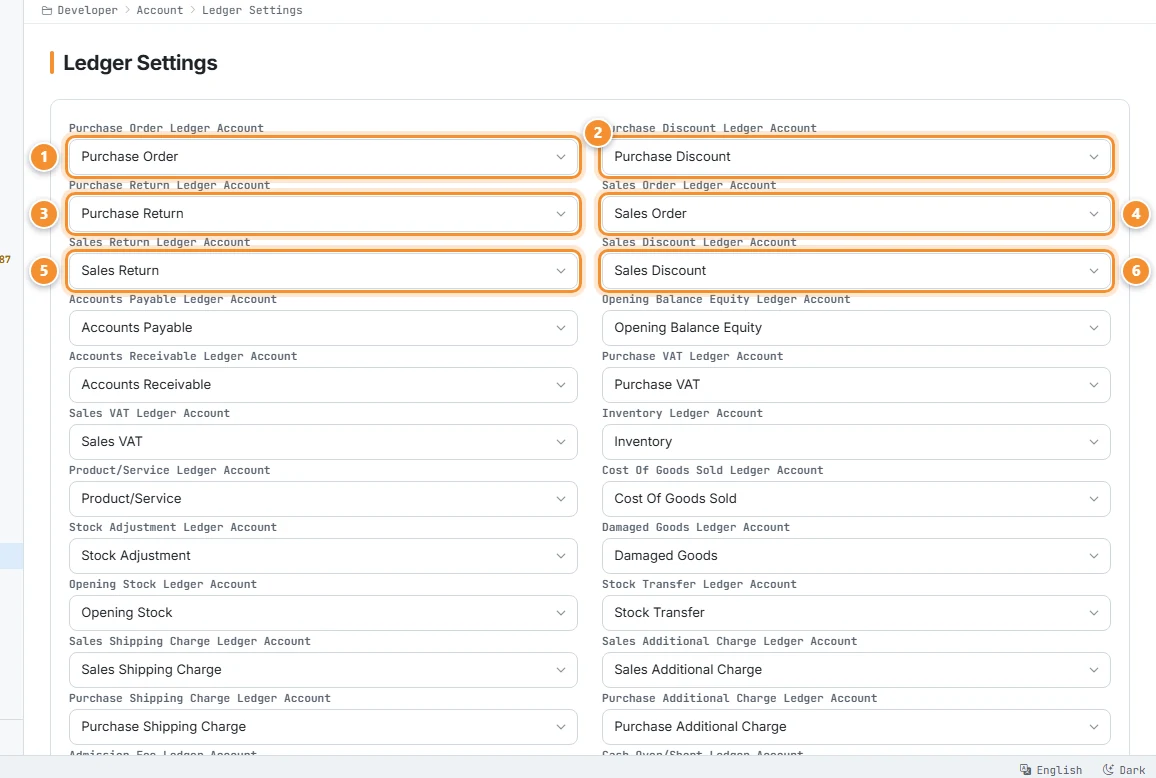 System default accounting ledger tag mappings
- Purchase Order — default posting account for committed vendor purchase orders.
- Purchase Discount — contra-expense or revenue account capturing early payment discounts from suppliers.
- Purchase Return — clearing account for returned goods sent back to suppliers.
- Sales Order — default sales revenue account credited when invoices are generated.
- Sales Return — contra-revenue account debited when customers return merchandise.
- Sales Discount — expense or contra-revenue account for promotional and early settlement price reductions.
Complete example: Configuring default retail revenue accounts
Suppose you are configuring ledger destinations for a retail chain:
- Open Account › Ledger Setting in Developer Console.
- For Sales Order, choose
4000 - General Sales Revenue. - For Sales Discount, choose
4100 - Promotional Sales Discounts. - For Purchase Order, choose
5000 - Inventory Purchases. - For Purchase Discount, choose
5100 - Vendor Discounts Received. - Save your settings.
When sales invoices are finalized, the system automatically posts credits to 4000 - General Sales Revenue and debits discounts to 4100 - Promotional Sales Discounts.
How to extend
- Override default ledger assignments on specific order vouchers using Order Setting.
- Verify book balancing and integrity using Ledger Maintenance.
- Pair with Account Receipt Setting for custom payment flow routing.
Rules and pitfalls
- If a ledger tag is unmapped, automated transaction posting pauses until an account is assigned.
- Changing a ledger mapping only affects transactions issued after the modification.
- Always ensure mapped ledger accounts are active in the Chart of Accounts.
Common questions
What happens if a ledger tag is left unmapped? Automated posting pauses for transactions of that type until an account is assigned, or prompts staff to pick an account manually.
Can individual product categories override these ledger tags? Yes. Categories can define dedicated income and expense accounts that supersede these global defaults.