
Booking Setting Edit
Create or modify booking resource classifications, venue coordinates, and contact bindings.
Booking Setting Edit
The Booking Setting Edit window allows developers to create and configure classifications of rentable resources, venues, and appointment slots such as conference rooms, hotel suites, rental equipment, or consultation services.
Resource classifications defined here configure the default contact bindings, facility details, and notification channels used by the Booking module.
When you use this
- Setting up distinct booking categories such as
Conference RoomsorVIP Meeting Spaces. - Assigning default venue addresses, customer notification email addresses, and contact phone numbers.
- Binding specific contact types to booking categories to streamline guest registration.
- Defining operational instructions and cancellation policies for rental assets.
Before you start
- Open Booking Setting and click Booking Setting Add or click an existing record's edit button.
- Ensure prerequisite contact types (such as Guests or Clients) exist in Contact Setting.
- Have the venue facility address, contact telephone, and notification email ready.
Enter resource details
In the Booking Setting Edit window, enter the display Title and unique technical Name.
Bind contact type and contact information
Select the default Contact Type from the searchable dropdown, then enter the primary facility Mobile and notification Email.
Specify address and operational instructions
Enter the physical facility Address and descriptive operational guidelines or equipment notes in Details.
Save the classification
Click Save & close at the bottom of the window to apply your changes and refresh the list.
Every field on this screen
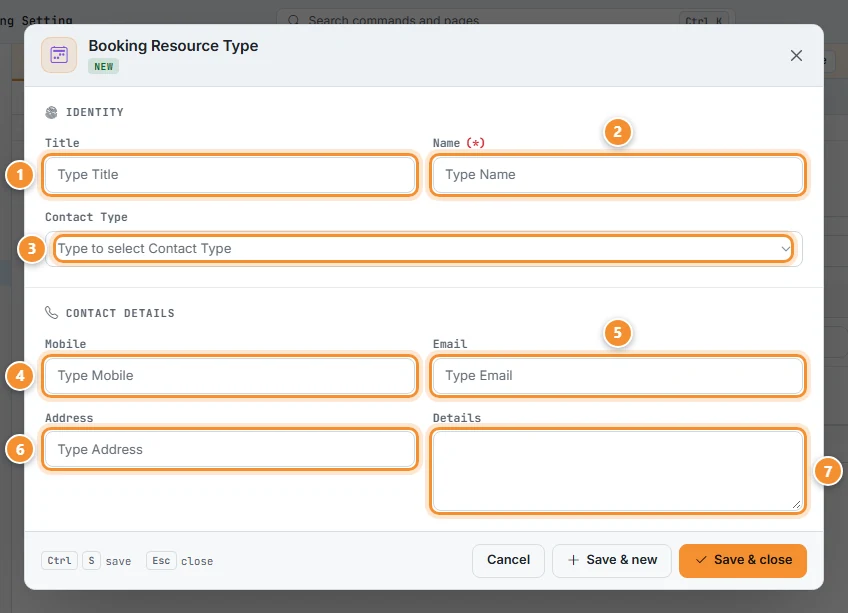 Adding or changing a booking resource type
- Title — display name shown to staff in booking menus and reservation schedules (e.g.
Executive Boardroom). - Name — unique technical identifier used in code and system queries (e.g.
executive_boardroom). - Contact Type — binds this booking resource type to a default customer or guest contact category.
- Mobile — default contact telephone number associated with this resource category for reservations.
- Email — notification email address used for dispatching reservation confirmations and calendar invites.
- Address — physical facility address, venue floor, or building location where the resource is situated.
- Details — extended description, operational equipment notes, or booking terms and conditions.
Complete example: Defining an "Event Auditorium" resource
Suppose you are configuring a co-working space facility with a rentable auditorium:
- In Booking Setting, click Booking Setting Add.
- In the modal:
- Set Title to
Event Auditorium. - Set Name to
event_auditorium. - Select Contact Type
Corporate Client. - Set Mobile to
+880 1700 000000. - Set Email to
[email protected]. - Set Address to
Floor 4, North Tower. - Set Details to
Includes 4K projector, sound system, and seating for 120 guests.
- Set Title to
- Click Save & close.
When desk coordinators open the reservation schedule, Event Auditorium is selectable as a distinct resource category with prefilled location and confirmation details.
How to extend
- Customize customer notification templates dispatched when reservations are booked.
- Connect external calendar sync providers to the specified resource mailbox.
- Pair with Product Setting to bill for resource rental hours automatically.
Rules and pitfalls
- The technical Name must be unique and contain only lowercase alphanumeric characters and underscores.
- Each booking classification binds to one primary contact type, setting guest categorization on new reservations.
- Changing contact or venue details affects future reservations created under this resource type.
Common questions
Can a booking resource type be assigned multiple contact types? No. Each booking classification binds to one primary contact type, which sets the guest classification on newly created reservations.
Where do staff view bookings created under this resource type? Staff view scheduled appointments and manage availability directly in the Booking module calendar.