
Admission Setting Edit
Configure educational admissions, student contact mappings, and tuition billing ledgers.
Admission Setting Edit
The Admission Setting Edit window enables developers to configure intake programs for educational institutions, training academies, and membership organizations, connecting candidate contacts to automated fee billing vouchers.
Every admission program integrates student registration with automated order generation and double-entry accounting ledgers.
When you use this
- Creating a new academic intake program such as
Undergraduate AdmissionorDiploma Intake. - Binding student enrollments to designated contact categories and tuition fee invoice vouchers.
- Enforcing mandatory administrative sign-off before student enrollment becomes active.
- Directing application and admission fees to specific revenue and accounts receivable ledgers.
Before you start
- Open Admission Setting and click Admission Setting Add or click an existing record's edit button.
- Ensure appropriate student contact categories exist in Contact Setting.
- Confirm tuition fee order types are configured in Order Setting.
Enter program details
In the Admission Setting Edit window, enter the display Title, unique technical Name, and descriptive Details.
Bind contact category and fee order type
Select the candidate Contact Type (such as Student or Trainee) and the billing Order Type used when generating tuition invoices.
Configure approval and ledger accounts
Set Approval needed mode, then select the appropriate Accounts Receivable and Admission Fee revenue ledgers.
Save the configuration
Click Save & close at the bottom of the window to apply your changes and refresh the list.
Every field on this screen
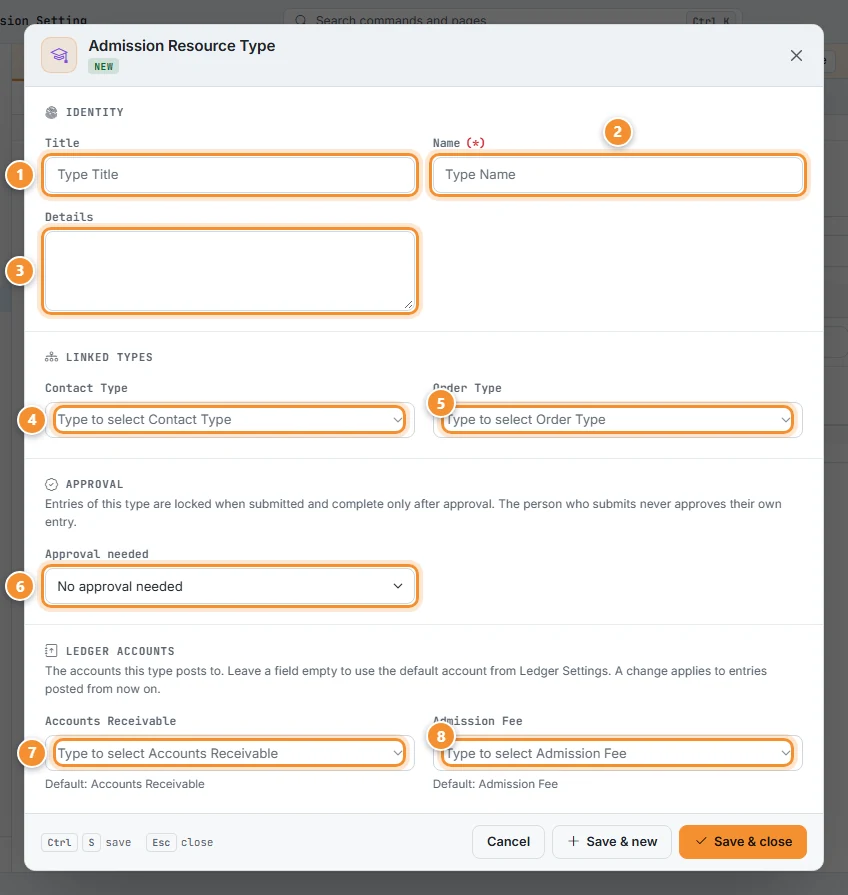 Adding or changing an admission resource type
- Title — display title of the admission program shown in enrollment portals and staff screens (e.g.
Computer Science Diploma). - Name — unique technical identifier used in backend queries and system workflows (e.g.
cs_diploma_admission). - Details — overview of the academic program, intake eligibility criteria, or enrollment instructions.
- Contact Type — binds enrolled applicants to a specific contact category (such as Student or Trainee).
- Order Type — transaction voucher type generated when billing tuition or admission processing fees.
- Approval needed — specifies whether admissions require authorization (
No approval needed,Any one approver, orAll approvers). - Accounts Receivable — ledger account tracking outstanding student tuition and fee receivables.
- Admission Fee — revenue ledger account credited when candidate application fees are collected.
Complete example: Defining an "Executive MBA" program
Suppose you want to configure an admission pathway for an Executive MBA Program:
- In Admission Setting, click Admission Setting Add.
- In the modal:
- Set Title to
Executive MBA Program. - Set Name to
emba_program. - Set Details to
Fall semester executive intake requiring 3 years managerial experience. - Select Contact Type
Student. - Select Order Type
Tuition Invoice. - Set Approval needed to
Any one approver. - Select Accounts Receivable
1200 - Student Tuition Receivables. - Select Admission Fee
4200 - Admission Application Fee Revenue.
- Set Title to
- Click Save & close.
When admissions staff create candidate files, student IDs are formatted according to the linked student type and fee invoices post directly to the designated tuition revenue ledgers.
How to extend
- Customize applicant information fields by adding parameters in Contact Setting.
- Create specialized receipt designs for tuition fees using Order Setting.
- Add multi-tier approval rules to ensure financial clearance prior to matriculation.
Rules and pitfalls
- The technical Name must be unique and contain only lowercase alphanumeric characters and underscores.
- If Approval needed is enabled, at least one authorized approver must be designated.
- Modifying revenue ledgers applies only to newly issued admission vouchers.
Common questions
Can different admission programs use different fee order types? Yes. Each admission classification can generate its own distinct order type, allowing custom printed receipts and payment terms per program.
Where do staff process received student applications? Staff manage and evaluate student applications directly inside the Admission module workspace.